
How to lock down your privacy settings: Microsoft Teams
Verified working August 20, 2026. Not working? Let us know
Easy · 4 steps · about 3 to 5 minutes
No link. Teams keeps this inside the app. One page, doing two jobs: who can reach you, and how much of what you send goes through Microsoft's cloud.
Copilot is not on this page. It keeps settings inside its own chat, which the Copilot guide covers.
How to find your Microsoft Teams privacy settings manually
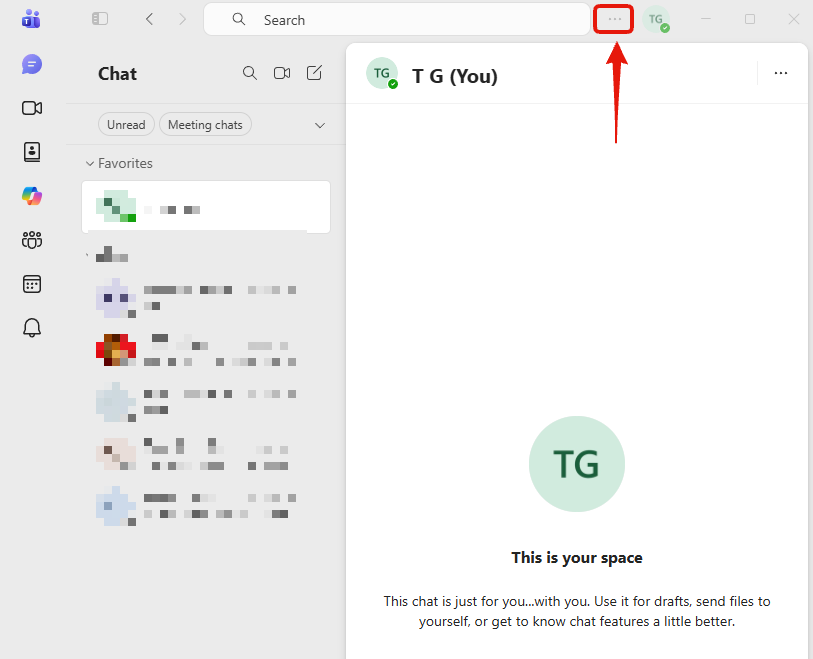
1. Open the menu next to your picture
Three dots in the title bar, left of your profile picture. Not the three dots inside a chat.
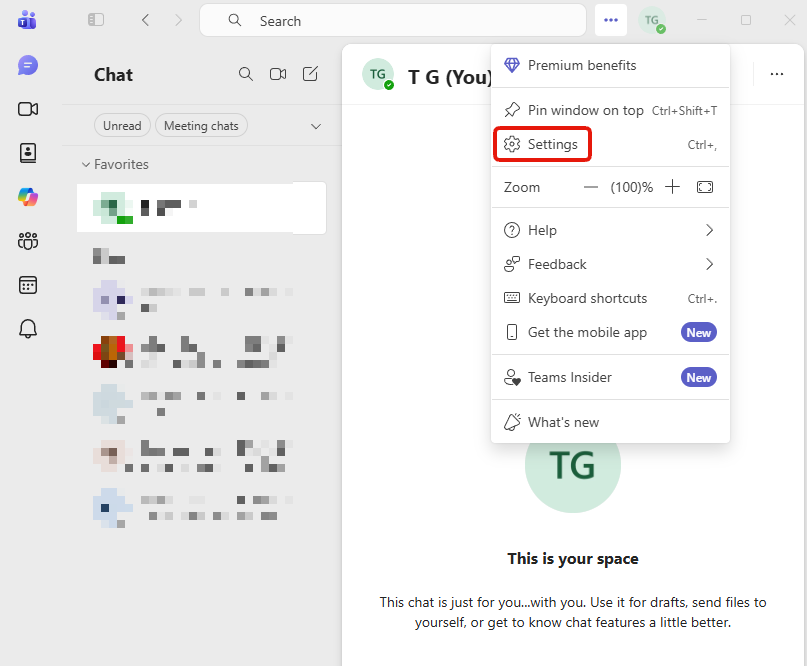
2. Choose Settings
Third from the top. Ctrl and comma also works.
3. Open Privacy
Sixth in the left list, under Accounts and orgs.
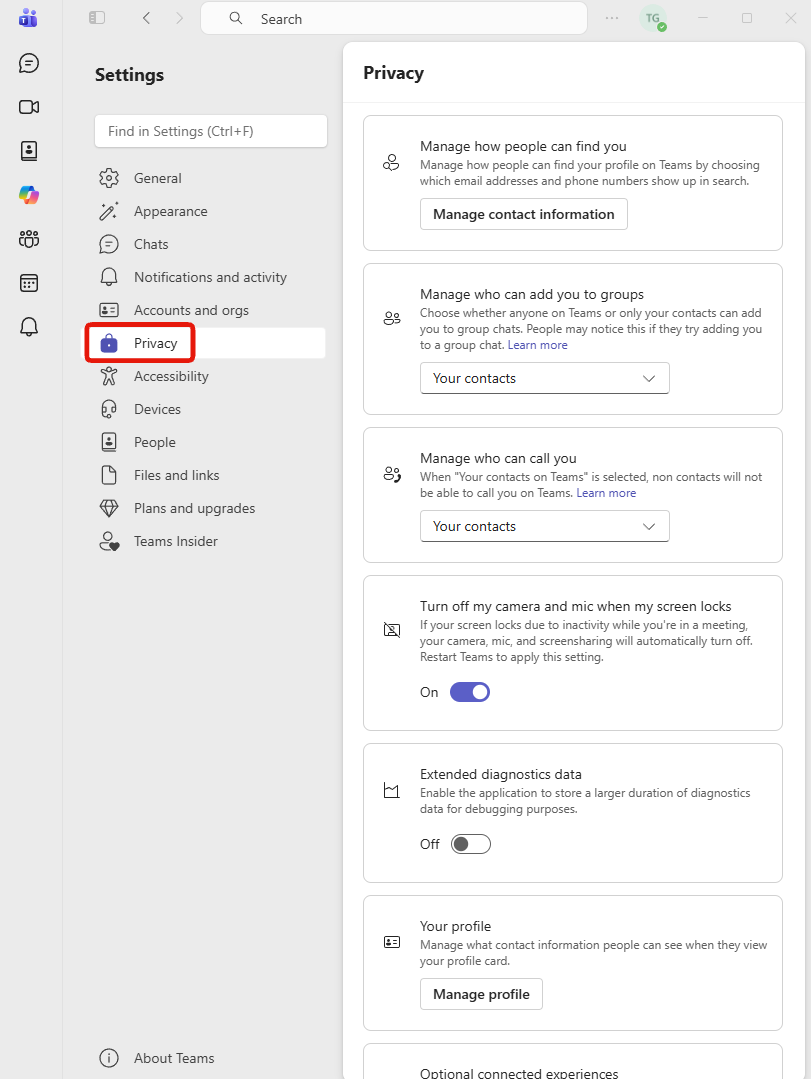
- Manage how people can find you. The email addresses and phone numbers that make your profile appear in a Teams search.
- Manage who can add you to groups. Teams warns people may notice how you set it.
- Manage who can call you.
- Turn off my camera and mic when my screen locks. Needs a Teams restart.
- Extended diagnostics data. Keeps a longer stretch of debugging data.
- Your profile. What others see on your profile card.
4. Keep scrolling
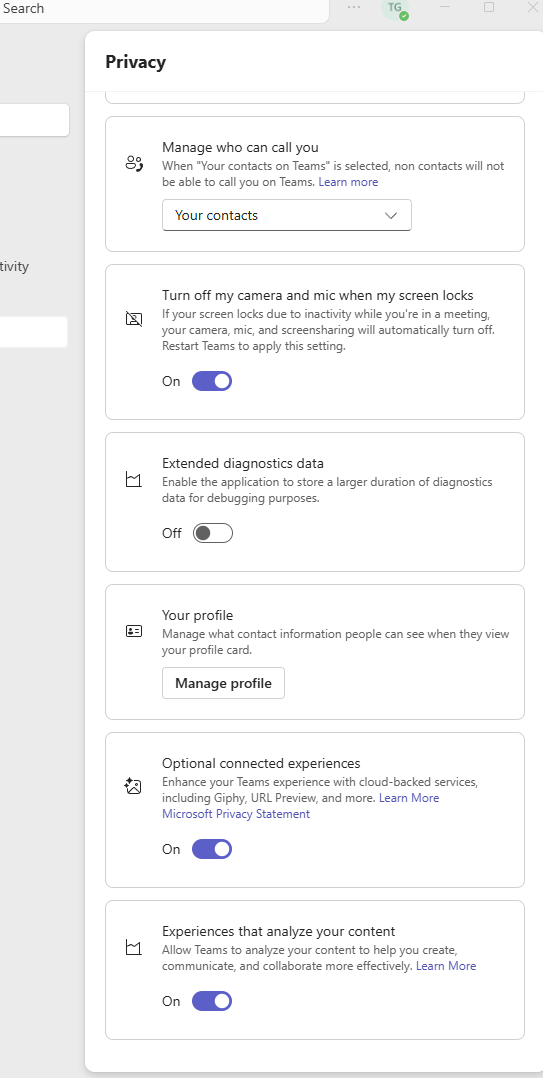
The last two are about your content, and both arrive on:
- Optional connected experiences. Cloud-backed extras such as Giphy and link previews. Each preview means the address you pasted was sent off to be looked up.
- Experiences that analyze your content. Teams reading what you write to offer suggestions.
The second is the same setting by the same name as the one in Word, and each app keeps its own copy, so the Office guide is a separate job.
On a work or school account
An administrator can lock any of this, in which case controls are greyed out or missing. That applies to the Copilot settings too.