
Back to all guides
How to lock down your privacy settings: Microsoft Office
Verified working August 20, 2026. Not working? Let us know
Easy · 3 steps · about 2 to 4 minutes
No link for this one. Office is software on your machine, so the settings are inside Word, Excel and PowerPoint. Change them in one and they apply to the rest.
Copilot is a separate switch elsewhere: its own guide.
How to find your Microsoft Office privacy settings manually
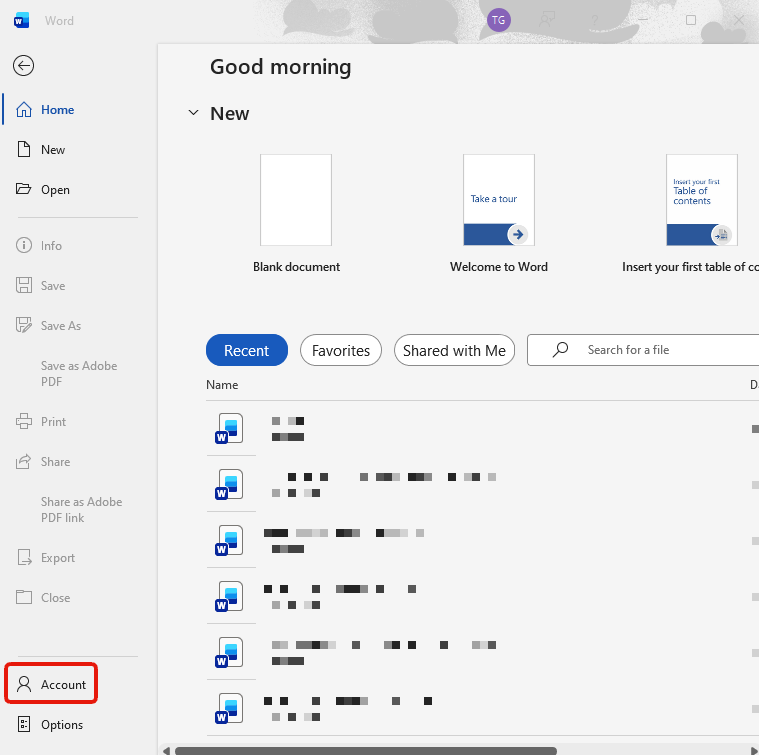
1. Open File, then Account
Account is near the bottom of the left rail, under Export and Close.
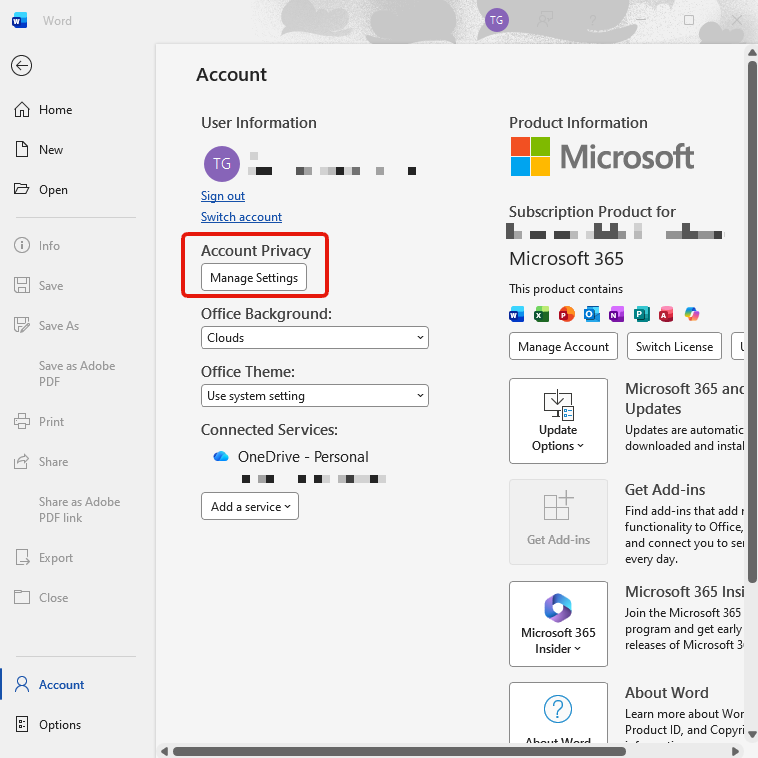
2. Press Manage Settings under Account Privacy
Under your name and email, above the Office Background and Theme dropdowns.
3. Work down the privacy dialog
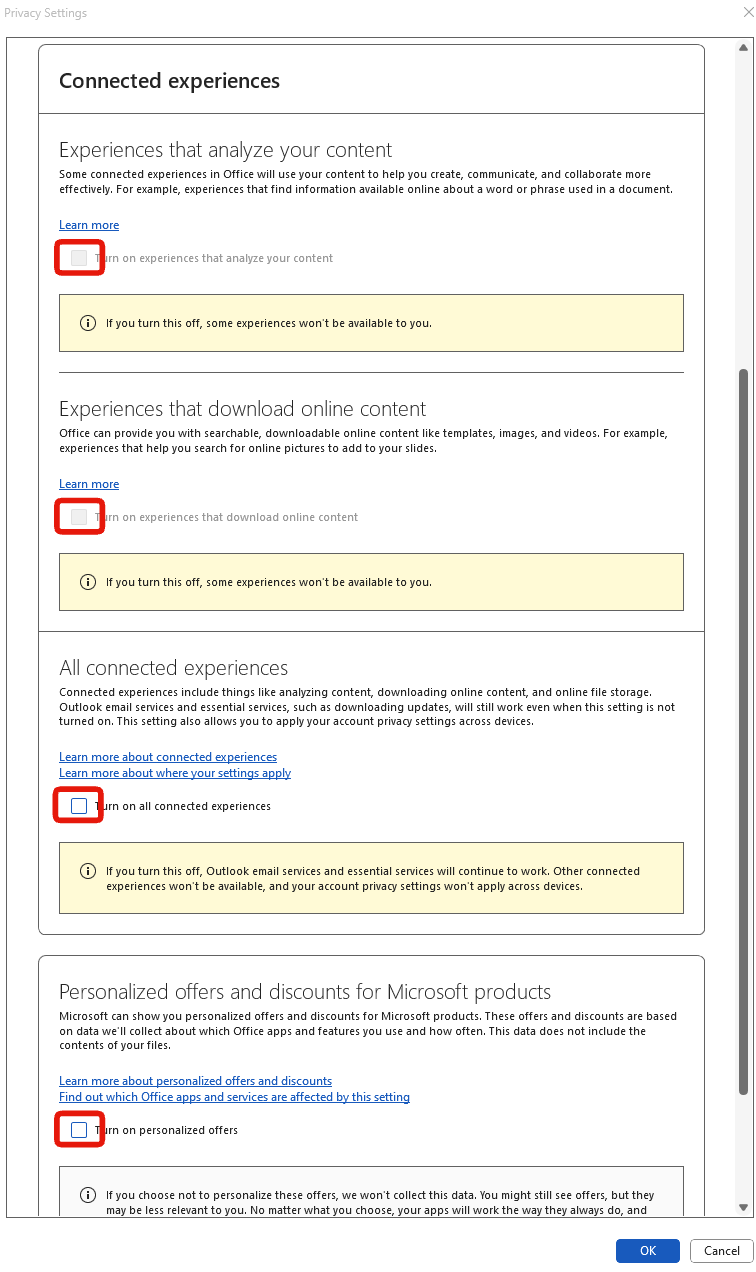
That is how I set mine, with everything off. What each covers:
- Experiences that analyze your content. Microsoft's wording is that they use your content to help you create and communicate. In practice the document goes to a cloud service. This powers design ideas, smart suggestions and translation.
- Experiences that download online content. Templates, stock images, reference material.
- All connected experiences. The master switch. Office warns that turning it off also stops your privacy choices applying across devices, so with Office on more than one machine you may prefer clearing the two specific boxes.
- Personalized offers and discounts. Advertising. Microsoft says it does not read file contents for this, only which apps and features you use.
- Diagnostic data, further down the dialog, controls how much telemetry the app sends.
Each section notes that some experiences will not be available if you turn it off.
Not covered
Files in OneDrive or SharePoint, which are governed by your Microsoft account terms rather than by a checkbox in Word.