
How to opt out of AI training: Microsoft Teams
Verified working August 20, 2026. Not working? Let us know
Easy · 3 steps · about 1 to 3 minutes
Copilot in Teams has its own chat and its own settings, unconnected to the Copilot checkbox in Word.
The settings that govern Teams itself are in the privacy guide.
How to find your Microsoft Teams AI opt-out manually
1. Open Copilot, then its chat settings
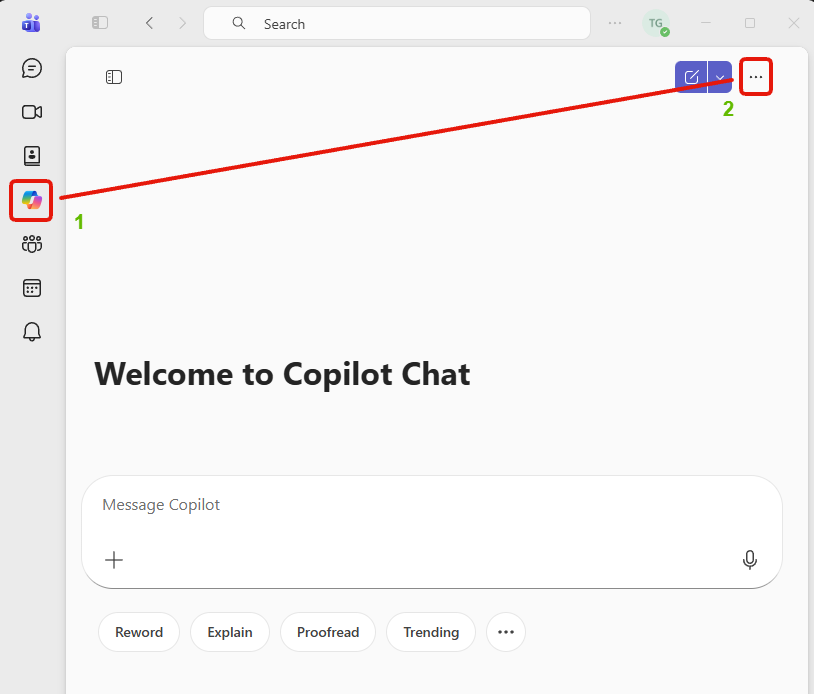
Copilot has its own icon in the left rail. Open it, then the three dots at the top right. The compose button sits next to them.
2. Set the three switches under Personalization
The dialog opens on General. Personalization is third, under Data controls.
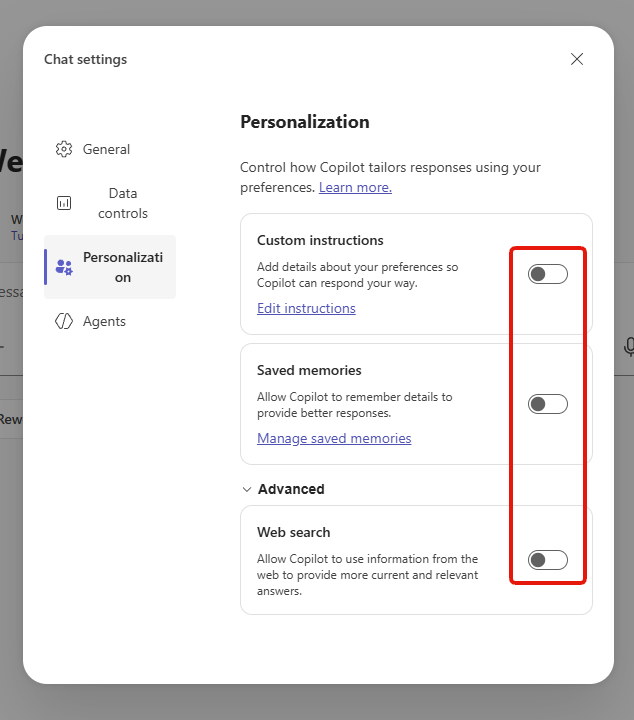
- Custom instructions. Standing text attached to everything you ask.
- Saved memories. Details kept between conversations. Manage saved memories beside it shows and clears what it holds.
- Web search. Sends your question out to the web.
3. Check what you have shared, under Data controls
Two buttons, both about sharing.
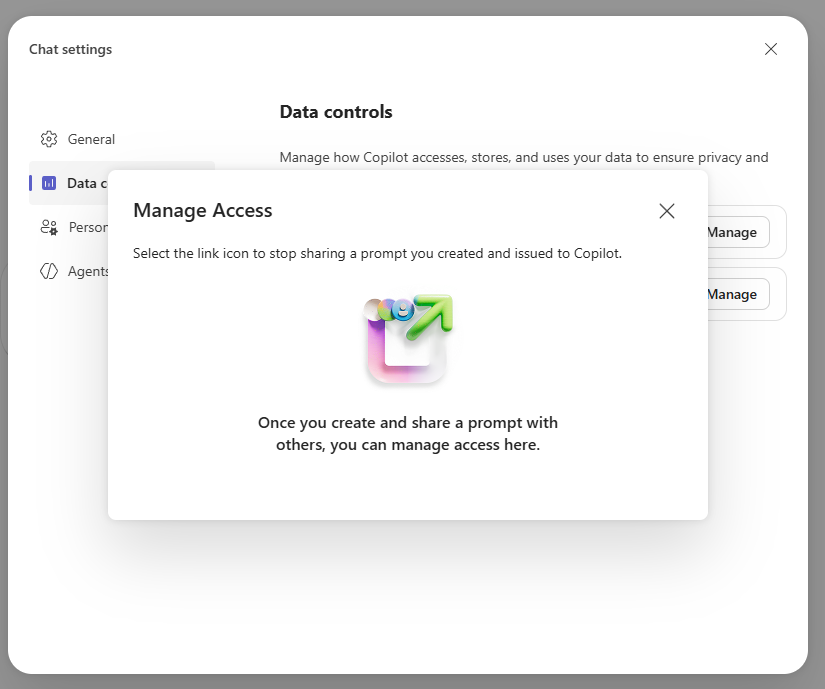
- Manage Access. Prompts you created and shared. The link icon stops sharing one.
- Shared links. Chats and responses you shared, and how to take them back.
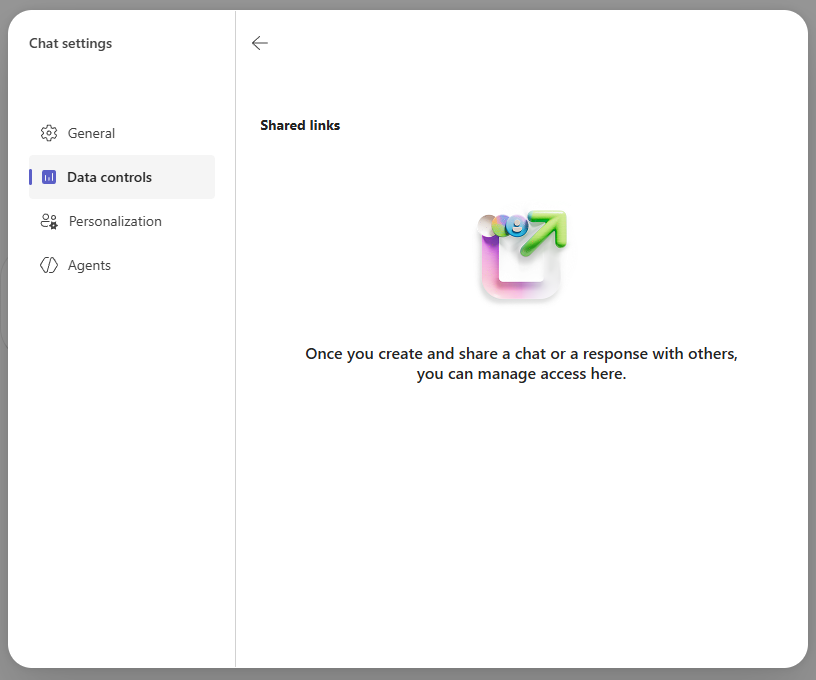
Both stay empty until you share something. A shared link keeps working until you revoke it.
What this gets you
Copilot stops keeping notes between chats and stops taking questions to the web. It still reads the chat you are in, and none of it touches training. On a work or school account an administrator can lock these switches.