
How to lock down your privacy settings: Tumblr
Verified working August 19, 2026. Not working? Let us know
Easy · 5 steps · about 5 to 10 minutes
Direct links to your Tumblr privacy settings
Blog settings belong to one blog at a time, and the real address ends in that blog's name: tumblr.com/settings/blog/your-blog-name. If you run more than one, every setting below the two account toggles has to be set again on each.
- Privacy settings - Your two account-wide toggles: whether people can see when you are online, and whether Tumblr feeds your search history into its recommendations.
- Blog settingsLikes, follows and comments all shared by default - Everything else, and it is the longer list: who can see your likes, your follows and your comments, who can message you, and who can find the blog at all.
Tumblr splits its privacy controls across two pages, and the split is easy to miss. The page actually called Privacy holds two switches. Almost everything worth changing sits somewhere else entirely, on the settings page for your blog, and you reach it from a link in the bottom corner that does not look like the way in.
One thing to hold in mind before we start. These settings decide how your blog meets the rest of the internet, so locking every one of them down has a cost. Most people who start a blog started it to be read. Not everyone, and that is fine, but it is worth deciding which of the two you are before you switch things off.
If what you came for is the AI question, that is a single toggle and it has its own page: how to opt out of AI training on Tumblr.
How to find your Tumblr privacy settings manually
1. Open your privacy settings
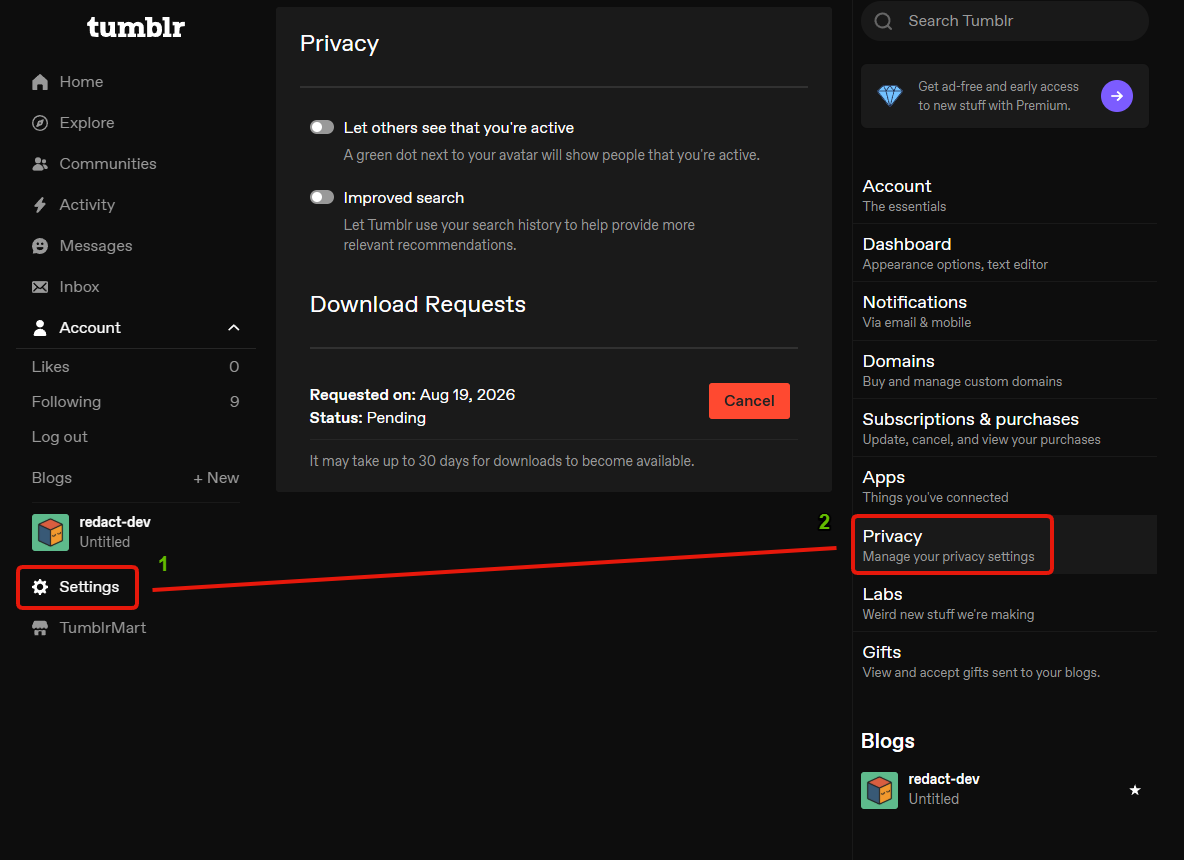
Click Settings in the left menu, then Privacy over on the right, under "Manage your privacy settings".
2. The two account-wide toggles
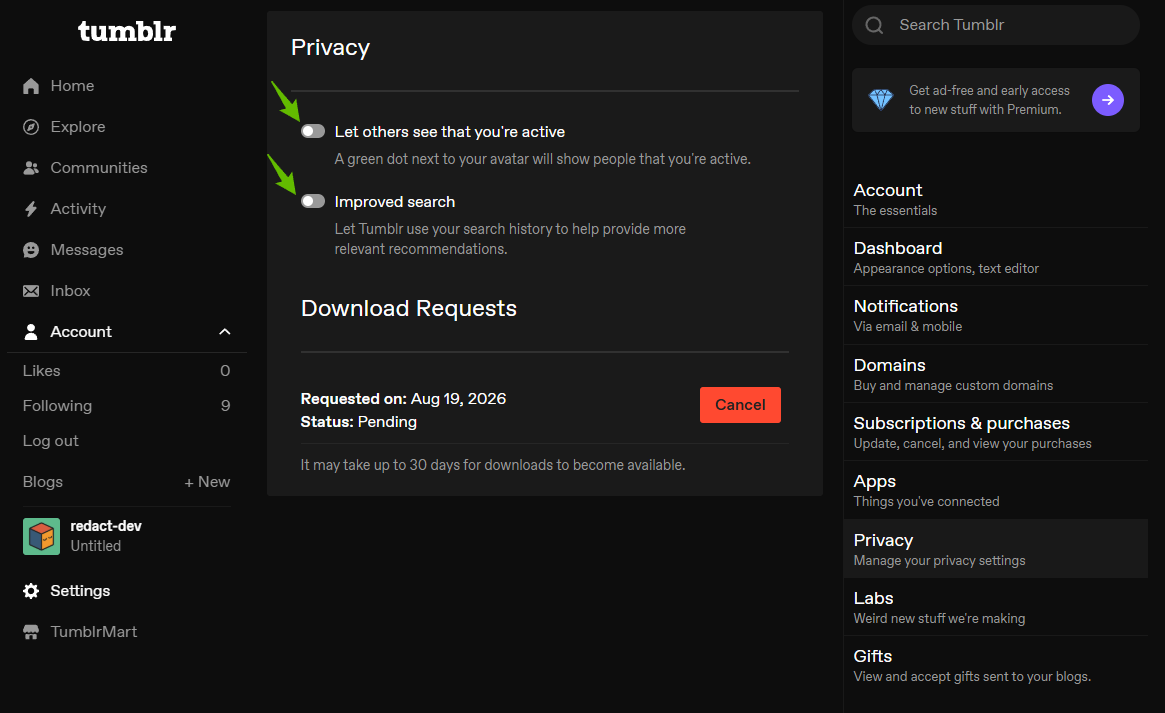
This is the whole Privacy page. Two switches.
Let others see that you're active
A green dot next to your avatar tells people you are around. In my opinion this is not a huge privacy risk, so set it however you are comfortable. It is not a make or break setting. The exception is if you specifically do not want a particular person knowing when you are logged in, and if that is your situation you already know it.
Improved search
Tumblr's own line is that it uses your search history to give you more relevant recommendations, so on its face this is internal and not much of a risk either. I would still turn it off. Search history is one of the more revealing things you hand a company, and "we only use it for recommendations" is a promise about today rather than a limit on tomorrow. Personal call, but that is the way I would go.
Download Requests
Not a toggle, but it is sitting on the same page under the two switches. This is where you ask Tumblr for a copy of your data, and it warns that it can take up to 30 days to arrive. Worth starting if you have never seen what they hold.
3. Find your blog
Now scroll all the way down the right-hand column. At the bottom, under Blogs, there is a link to your blog. Click it.
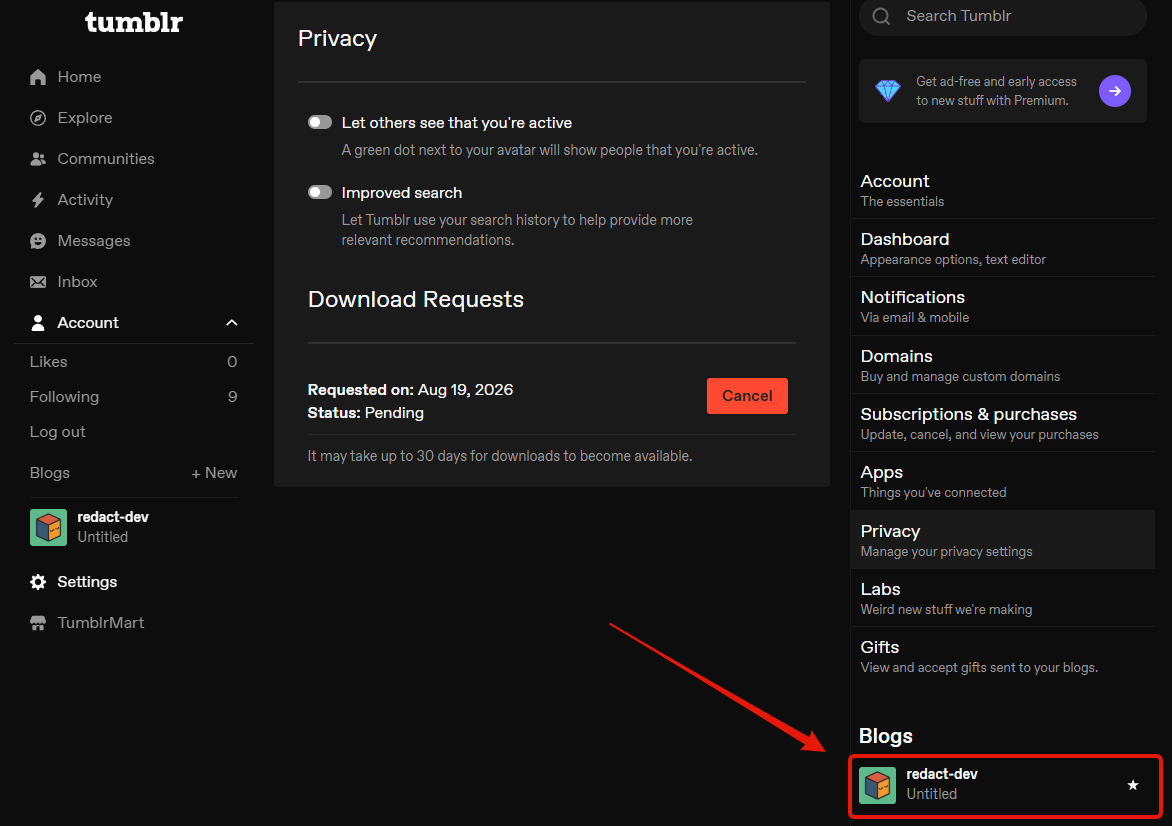
I am not a Tumblr user myself, so I went in unsure whether everyone even has a blog to click. It looks like they do. Tumblr calls this one your primary blog and says outright that it cannot be deleted without deleting the account it belongs to, which reads like something handed to you when you sign up rather than something you opted into.
Once you are through, check the address bar. It reads
tumblr.com/settings/blog/your-blog-name, and that is worth keeping if you run more than
one blog, because it is how you go straight to the next one instead of coming back through
this menu each time.
4. What your blog shares by default
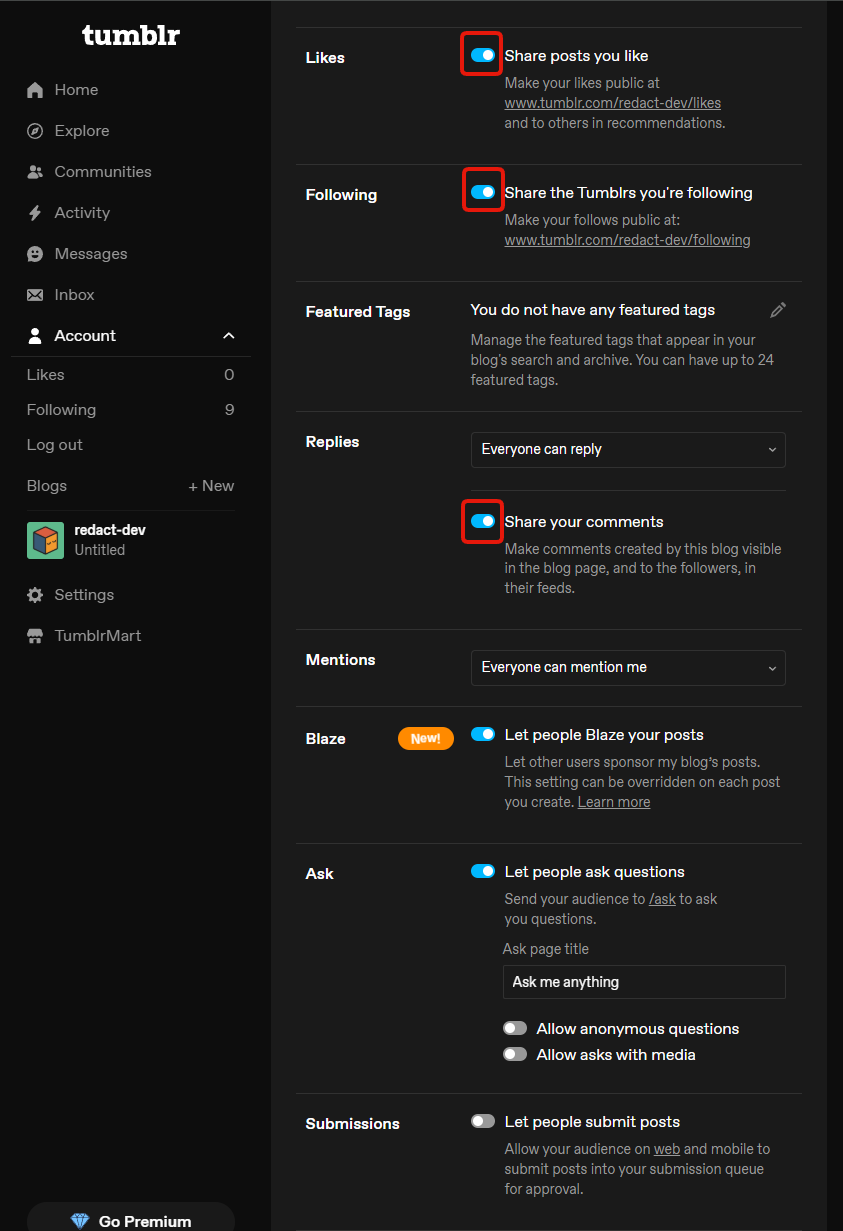
Clicking through drops you into a long list, and the first three are all switched on before you touch anything.
Share posts you like
This publishes your likes at tumblr.com/your-blog/likes, and Tumblr also feeds them into
recommendations. Do you want the public seeing what you like? If not, turn it off.
Share the Tumblrs you're following
Same idea, published at tumblr.com/your-blog/following. Do you want the public seeing who
you follow? If not, turn it off.
Share your comments
This puts a feed of the comments you make on your blog page and into your followers' feeds. If you would rather your commenting not be collected into one readable stream, turn it off.
None of those three costs you reach in search, so this is the group I would be most willing to switch off even if you do care about your blog being found.
5. Messaging, and who can find the blog at all
Keep scrolling. This is where the settings start having real consequences.
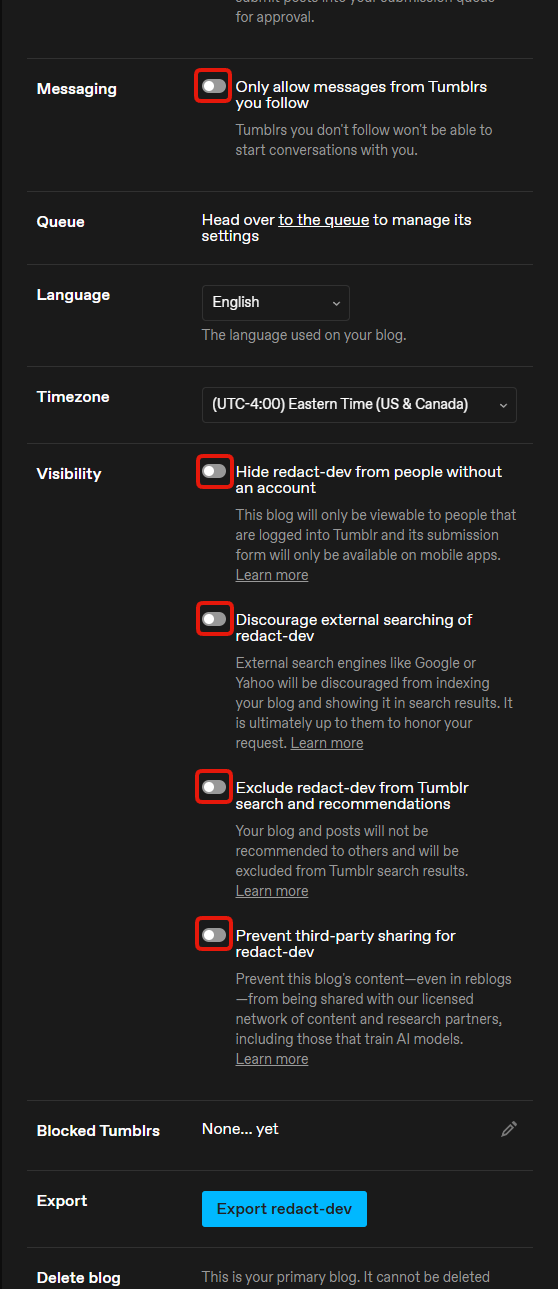
Only allow messages from Tumblrs you follow
Purely a DM control, and it has no bearing on the marketing side of your blog. If you do not want strangers opening conversations, turn it on.
Everything below this point sits in the group Tumblr calls Visibility, and all four of them were off when I got there.
Hide your blog from people without an account
This is a big one. It shuts your blog off from the open internet, so only people logged into Tumblr can read it, and Tumblr adds that your submission form will then only work on mobile apps. Real protection, real cost.
Discourage external searching of your blog
Tumblr's wording matters here, so I will use it: external search engines like Google or Yahoo will be discouraged from indexing your blog, and it is ultimately up to them whether they honour the request. Read that as a strong hint rather than a lock. It also says nothing about AI crawlers either way, so do not lean on it for that. The toggle further down is the one that speaks to AI.
Exclude your blog from Tumblr search and recommendations
The inside counterpart to the one above. Your posts stop being recommended to other users and drop out of Tumblr's own search results. Worth knowing this is separate, because switching off outside search does nothing about the inside kind.
Prevent third-party sharing for your blog
This is the one that decides whether your content can be licensed out for AI training, and it deserves more than a line here. It has its own guide: how to opt out of AI training on Tumblr. If you are reading a page like this one at all, my answer is that it should be on.
What to expect after
All four Visibility toggles were off when I arrived, and the first three sharing switches were on. That is the shape of it: the defaults publish, and every protection here is something you have to go and turn on yourself.
None of this reaches back over what you already posted. These settings govern who can see the blog and what gets shared going forward. The posts, reblogs and comments already sitting there stay exactly where they are until you remove them.