
How to lock down your privacy settings: Slack
Verified working August 21, 2026. Not working? Let us know
Easy · 3 steps · about 2 to 4 minutes
This guide covers the two any member can change. The AI opt-out guide covers the admin dashboard and the email.
How to find your Slack privacy settings manually
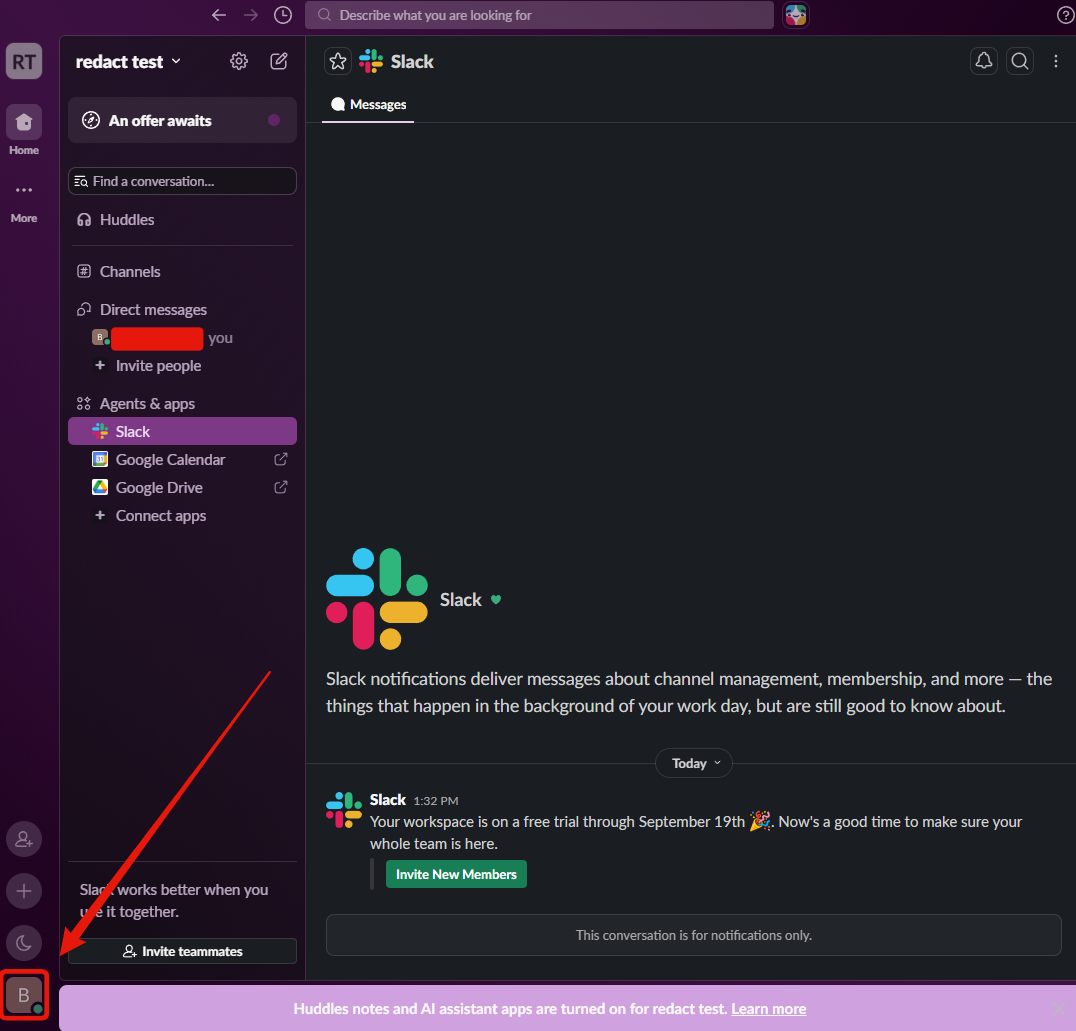
1. Open your preferences
Click your profile picture, then Preferences. On desktop it sits at the foot of the rail down the left.
2. Privacy and visibility
Two settings, both on by default.
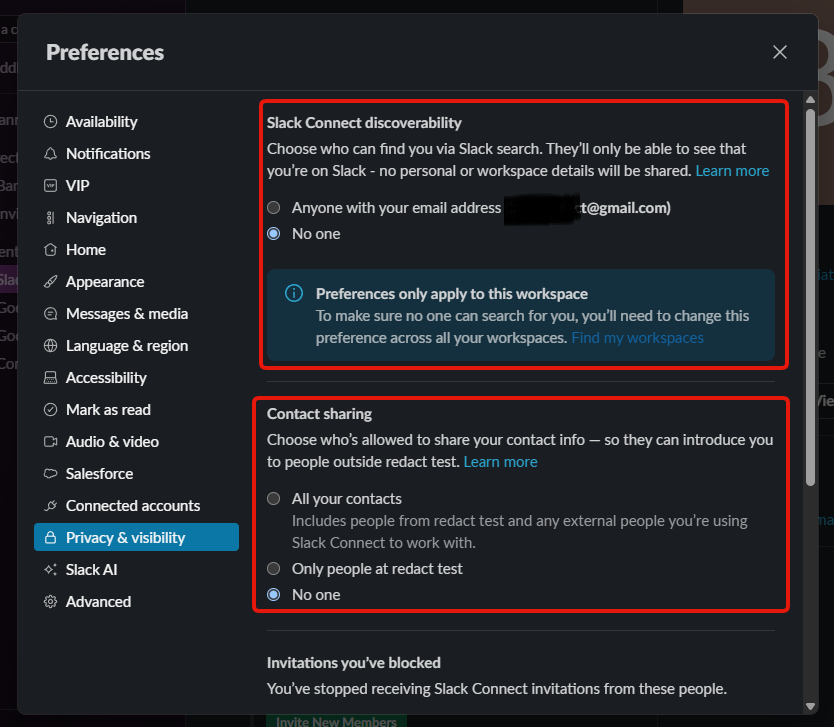
- Slack Connect discoverability. Whether people can find you in Slack search by your email address. No one stops it.
- Contact sharing. Who may pass your contact details to people outside your workspace.
Slack's own notice in that panel is the part to read:
Preferences only apply to this workspace. To make sure no one can search for you, you'll need to change this preference across all your workspaces.
Five workspaces means doing this five times. There is a Find my workspaces link in the same panel.
3. Slack AI
Its own tab, one checkbox: Stream summary results.
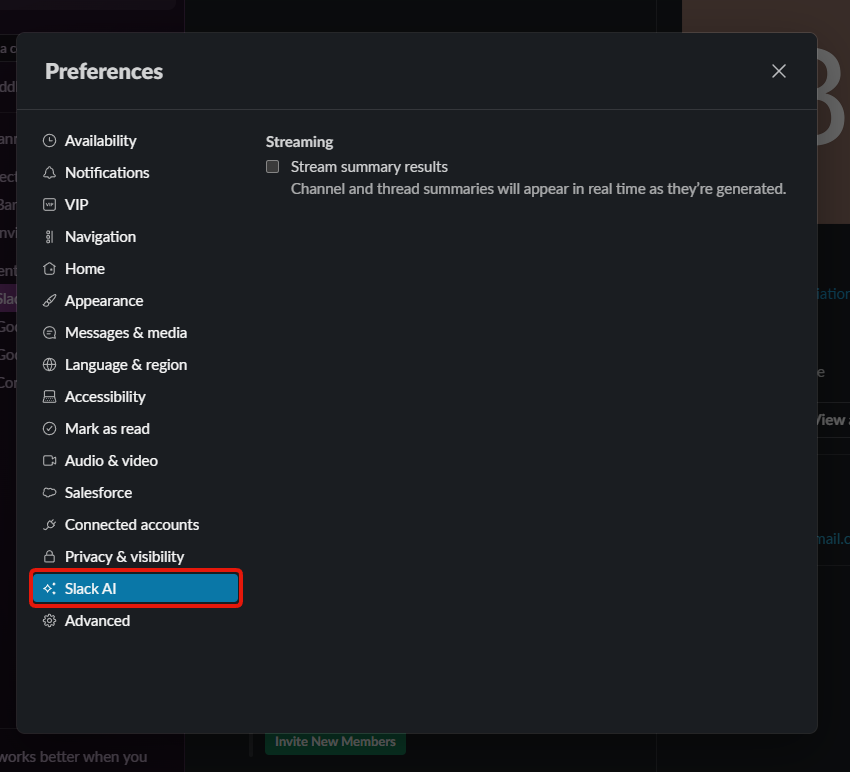
Clearing it stops summaries appearing as they generate. It is not an opt-out and does not stop Slack training on your messages.