Back to all guides
How to opt out of AI training: Slack
Verified working August 21, 2026. Not working? Let us know
Medium · 3 steps · about 5 to 10 minutes
Direct links to your Slack AI opt-out
One settings page, one email address. The email is the opt-out.
- Admin dashboard - The AI feature controls. Owners and admins only.
- Slack's privacy principles - Slack's own page on what it does with customer data.
Slack keeps this in four places:
- Your preferences: discoverability and contact sharing, per workspace.
- The Slack AI tab: streamed summaries.
- The admin dashboard, on the web: every AI feature, org-wide.
- An email: model training.
The privacy guide covers the first two. This covers the rest.
How to find your Slack AI opt-out manually
1. Open the admin dashboard
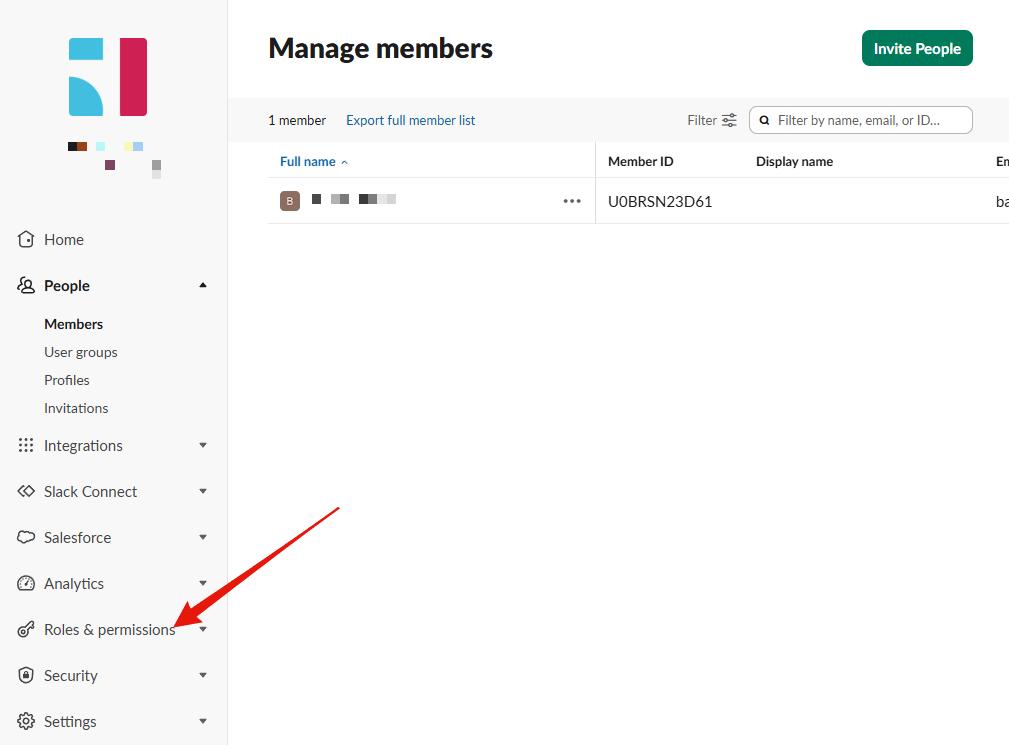
slack.com/admin, signed in. Web only, not in the app. Open Roles & permissions.
2. Choose Feature access
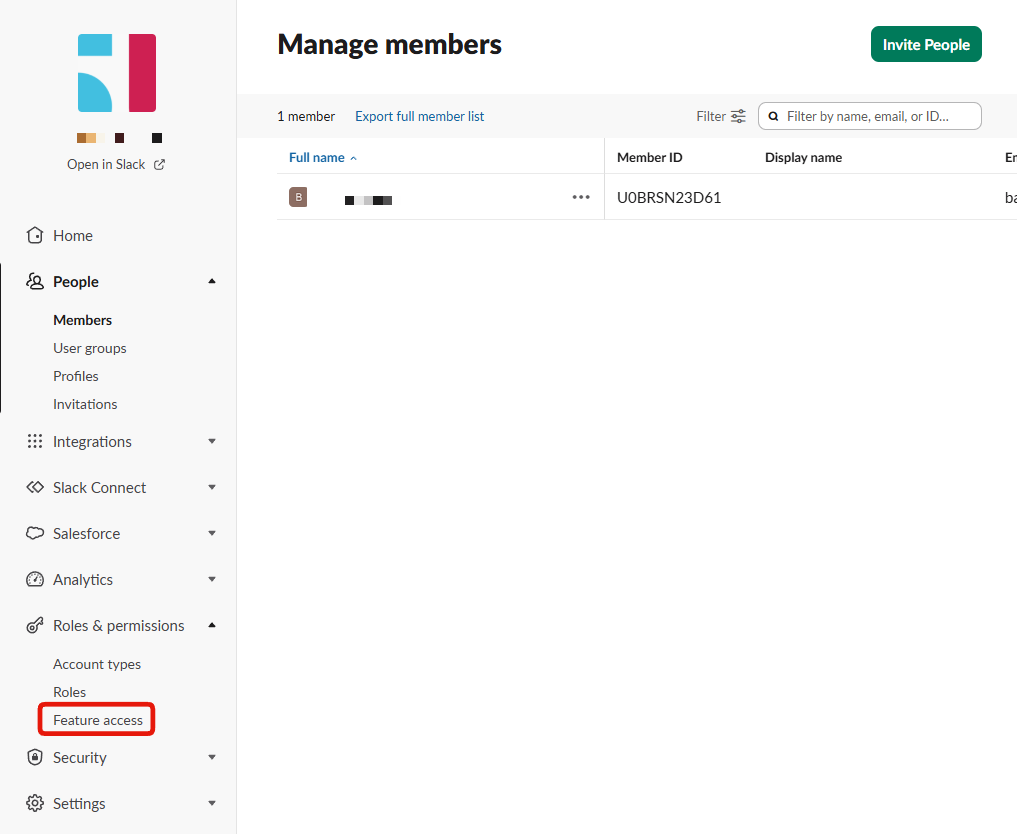
Third entry, after Account types and Roles.
3. Set the AI controls
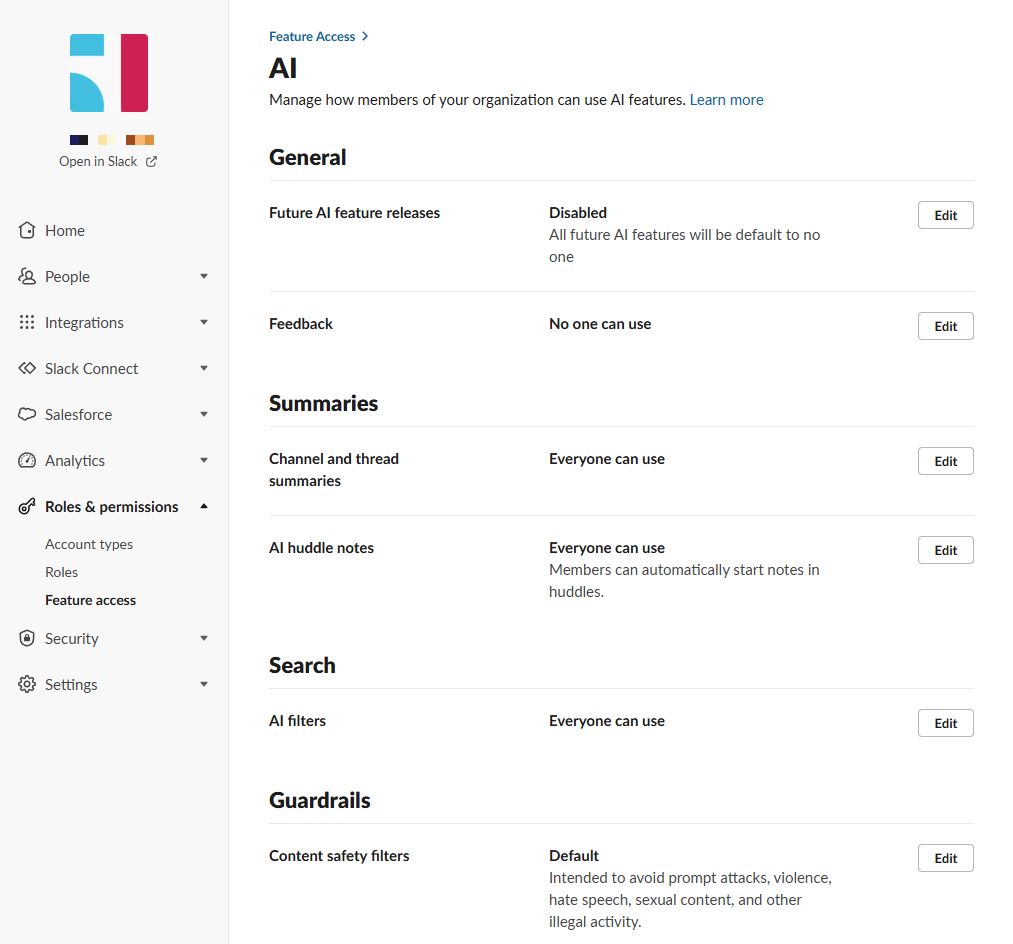
- Future AI feature releases. Disabled means AI features Slack ships later arrive off. Do this one first.
- Feedback. Who can send Slack feedback about AI.
- Channel and thread summaries. Slack AI writing up conversations.
- AI huddle notes. Lets anyone start automatic huddle notes.
- AI filters. AI in search.
- Content safety filters. Blocks prompt attacks and abusive content, not your data.
Off, restricted or disabled across the board is a reasonable answer.