
How to lock down your privacy settings: Pinterest
Verified working August 19, 2026. Not working? Let us know
Easy · 4 steps · about 2 to 3 minutes
Direct links to your Pinterest privacy settings
Everything here sits on one page, and nothing needs saving. Each box takes effect the moment you clear it.
- Privacy and dataAll six ticked by default - Six advertising checkboxes governing what Pinterest collects, what it hands to partners, and what follows you off the site. Also where you request or delete your data.
Pinterest gathers all of its advertising controls onto one screen, which is a better arrangement than most services manage. The catch is that there are six of them, every one ticked before you arrive, and they are worded closely enough that it is hard to tell at a glance which does what.
A useful way to read them is by direction. Two govern what Pinterest takes in about you from elsewhere. Two govern what it sends out to advertisers. Two govern what follows you around the rest of the internet. Clearing all six is the simple answer, and the walkthrough explains each one so you can keep any you actually want.
Pinterest also runs a separate control over whether your data trains its image model. None of the six below touches it, and it gets its own page: how to opt out of AI training on Pinterest.
How to find your Pinterest privacy settings manually
1. Open the settings menu
Pinterest hides this where few sites do. Look at the very bottom of the left rail for a gear icon, rather than the account menu at the top right.
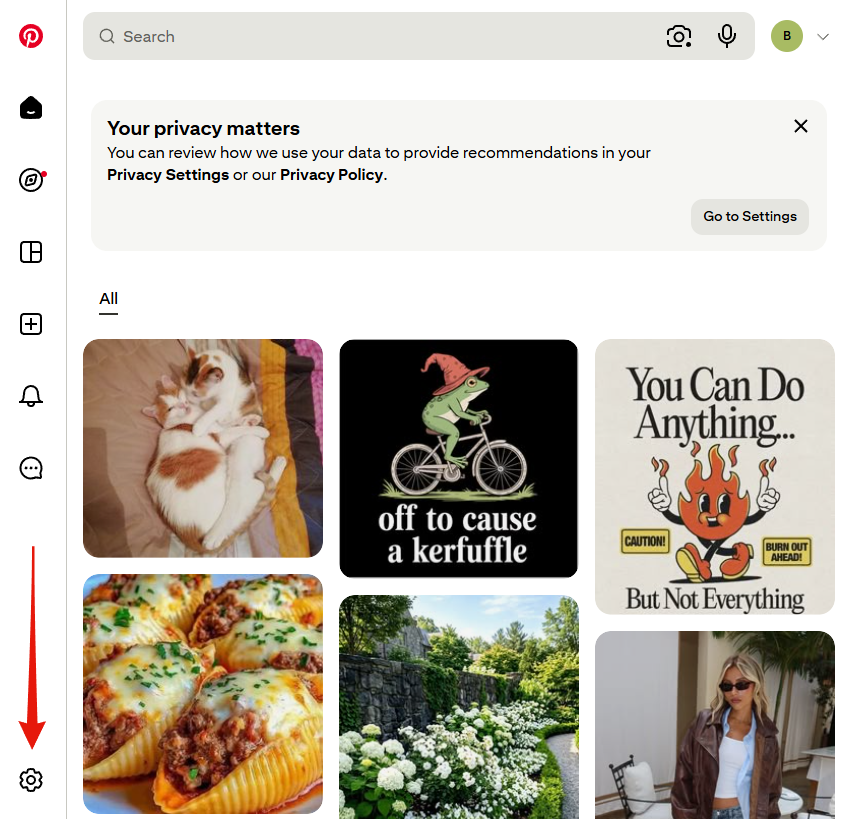
If a "Your privacy matters" banner happens to be sitting at the top of your feed, its Go to Settings button drops you in the same place.
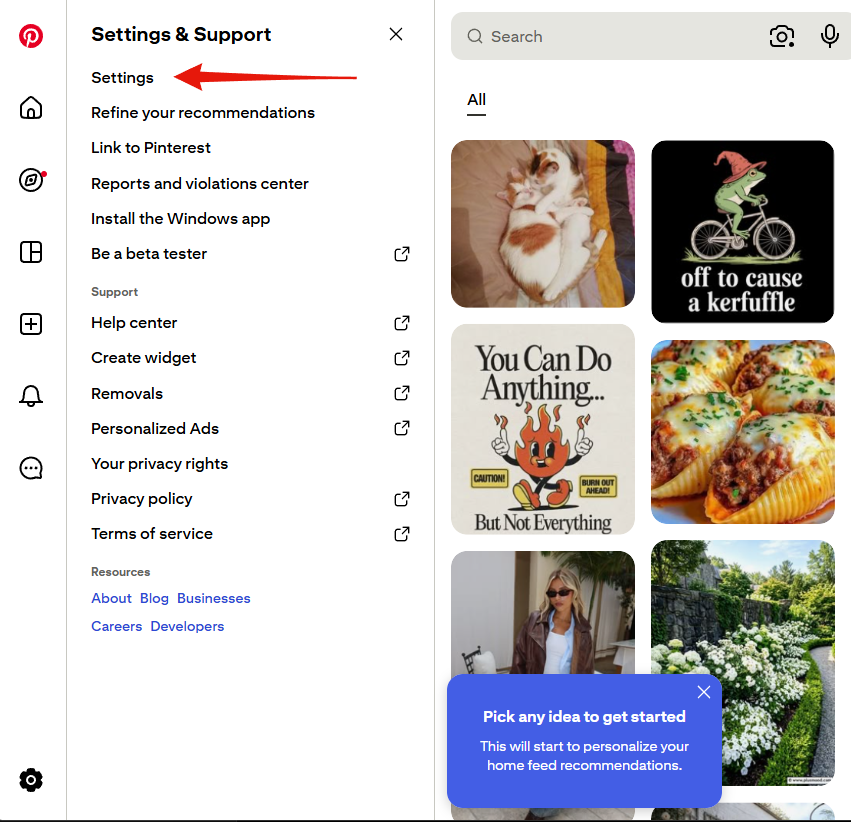
2. Choose Settings
A Settings & Support panel slides out. Settings, right at the top, is the one you want. Ignore Personalized Ads further down the list, which leads off to a different page and does not cover any of this.
3. Go to Privacy and data
A column of settings sections appears on the left. Privacy and data is the eighth entry, below Notifications.
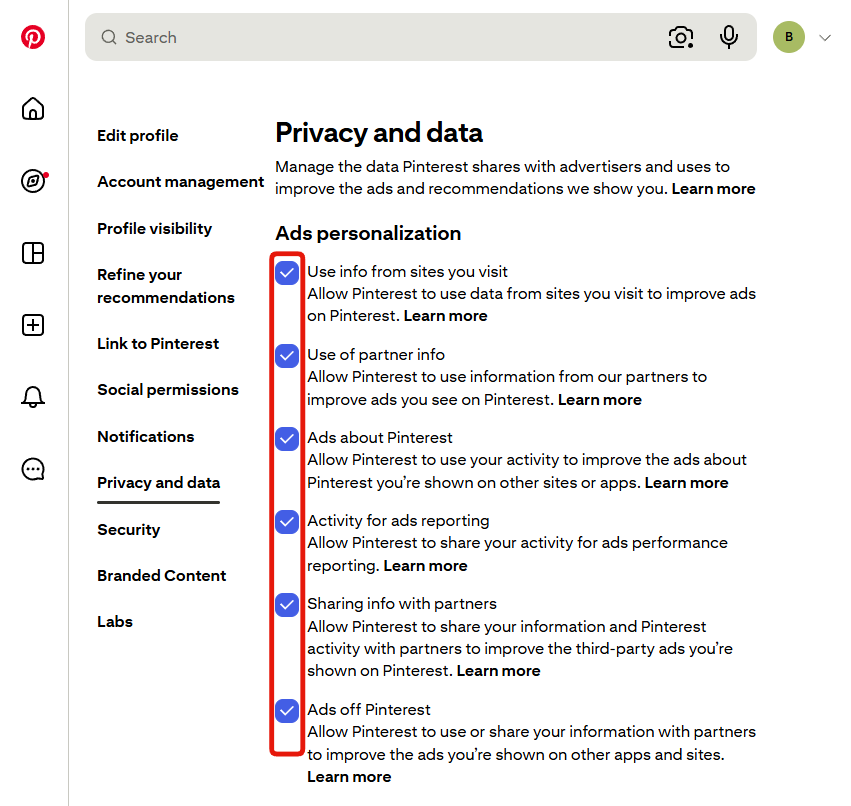
4. Clear the six boxes under Ads personalization
No save button, no confirmation. Each box takes effect as you clear it.
Use info from sites you visit
Pinterest watching your browsing elsewhere and using it to pick ads for you on Pinterest. Of the six, this is the one most people are surprised to find switched on.
Use of partner info
The same idea from the other end, meaning information Pinterest's partners hand over about you, fed into the ads you get shown. Pinterest does not name the partners here.
Ads about Pinterest
Your activity used to target Pinterest's own marketing at you on other sites and apps. Not ads on Pinterest, but ads for Pinterest, chasing you elsewhere.
Activity for ads reporting
Your activity shared onward so advertisers can measure how their campaigns performed. Sounds administrative, and it still means your behaviour leaving Pinterest.
Sharing info with partners
Your information and your Pinterest activity going out to partners, so those partners can aim better third-party ads at you back on Pinterest. Data out, ads in.
Ads off Pinterest
The broadest of the six. Your information used or shared with partners to shape ads you see on other apps and sites entirely. If you only clear one box, this is the one with the longest reach.
Two buttons worth knowing about
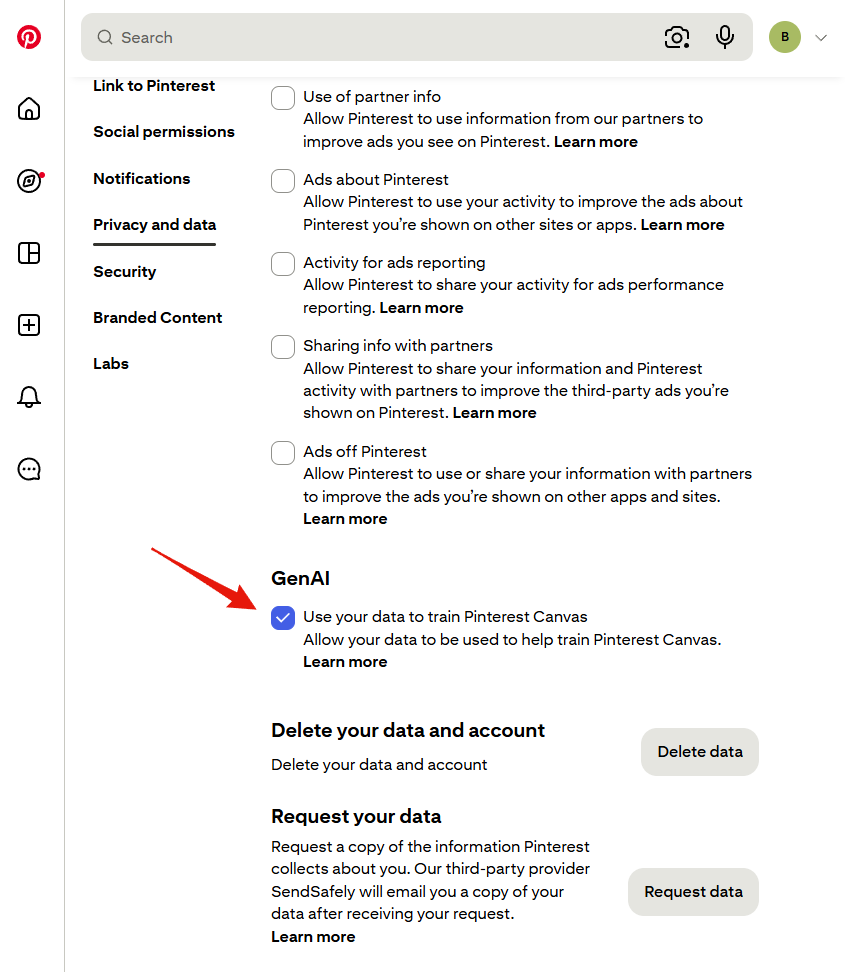
At the bottom of the same page sit Request data and Delete data. Requesting sends you a copy of what Pinterest holds, delivered by a third party called SendSafely rather than by Pinterest itself. Worth doing once, if only to see the size of it.
Read the delete option carefully before pressing it. Pinterest labels that section Delete your data and account, so it is not a tidy-up, it is the exit.
What this does not do
Clearing these boxes changes what Pinterest collects and shares from here on. Your pins, boards and search history stay exactly where they are, and none of the six is the AI setting.