How to opt out of AI training: Pinterest
Verified working August 19, 2026. Not working? Let us know
Easy · 4 steps · about 2 to 3 minutes
Direct links to your Pinterest AI opt-out
One checkbox, at the very bottom of the page under a heading of its own. Nothing to submit, and no confirmation.
- Privacy and dataTicked, so training is on until you clear it - Scroll past the whole advertising block. The GenAI heading is near the foot of the page, just above the buttons for requesting and deleting your data.
Pinterest gives you a genuine say over model training, which puts it in a small minority of the services covered here. The setting is called Use your data to train Pinterest Canvas, and Canvas is Pinterest's own generative image tool.
Two things make it easy to miss. It is ticked from the start, and it is filed at the bottom of a page that most people open for a completely different reason, below a block of six advertising options that has nothing to do with it.
Worth pausing on what training means on a platform like this one. Pinterest is pictures and the things people group together, so what a model learns from an account is not really a list of facts about you, it is your taste and your eye. Whether that bothers you is a personal judgement, but it is a different question from advertising, and Pinterest treats it as one by giving it a separate heading.
How to find your Pinterest AI opt-out manually
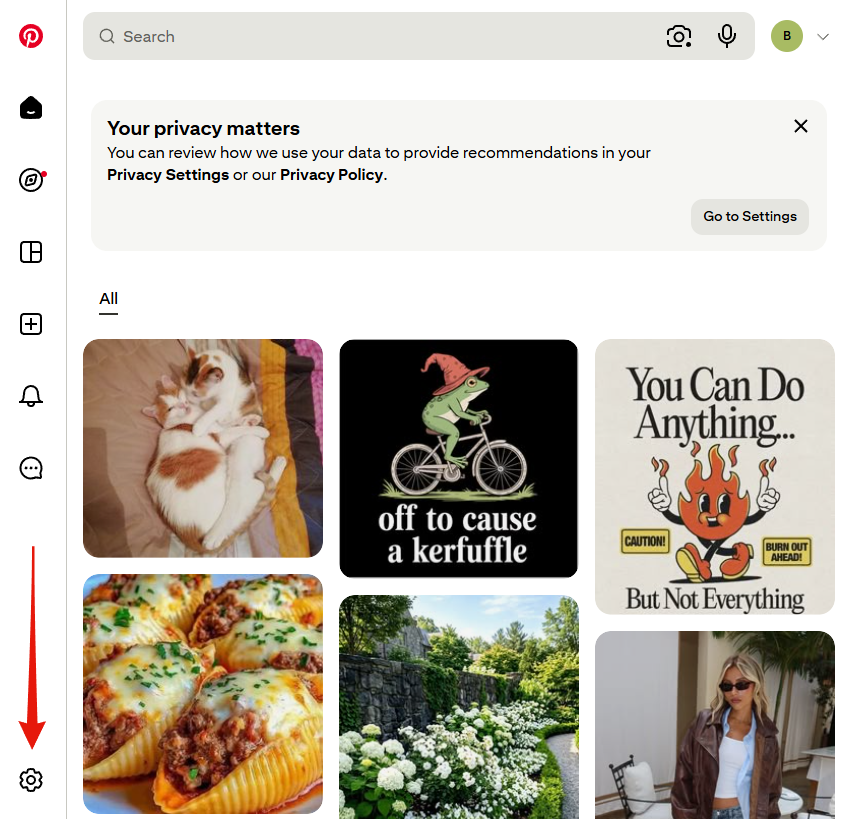
1. Find the settings gear
Pinterest keeps its settings entrance at the foot of the left-hand rail, marked with a gear. Most sites would put it behind your avatar in the top corner, so it is a common place to get stuck.
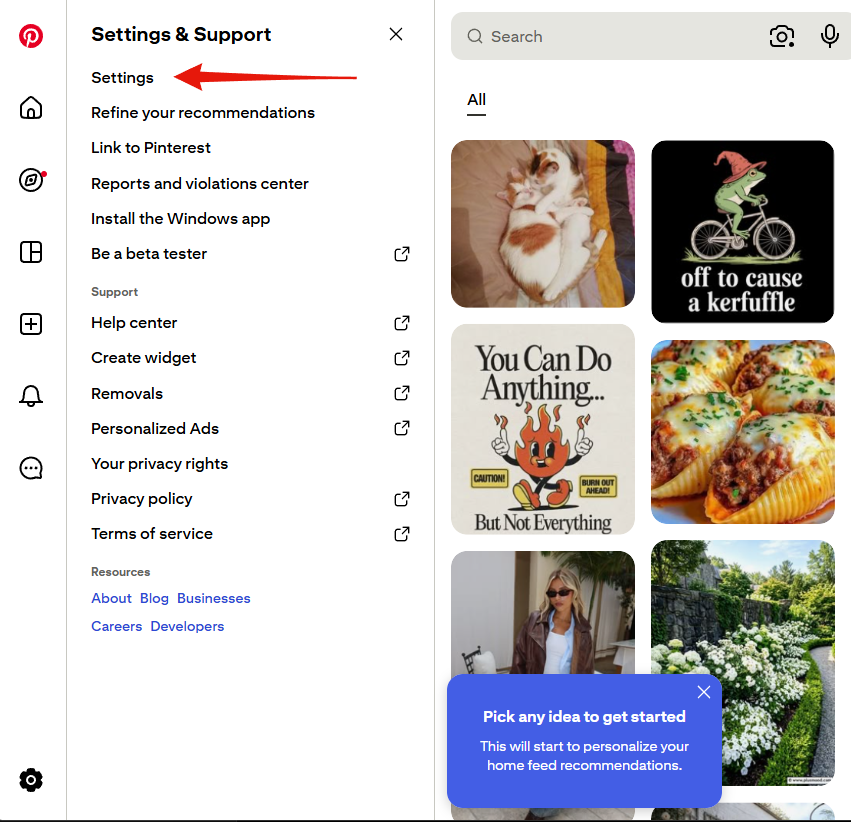
2. Pick Settings from the panel
Clicking the gear opens Settings & Support. Take the first entry, Settings. Several of the other entries also sound relevant, including Personalized Ads and Your privacy rights, and none of them reaches the box you want.
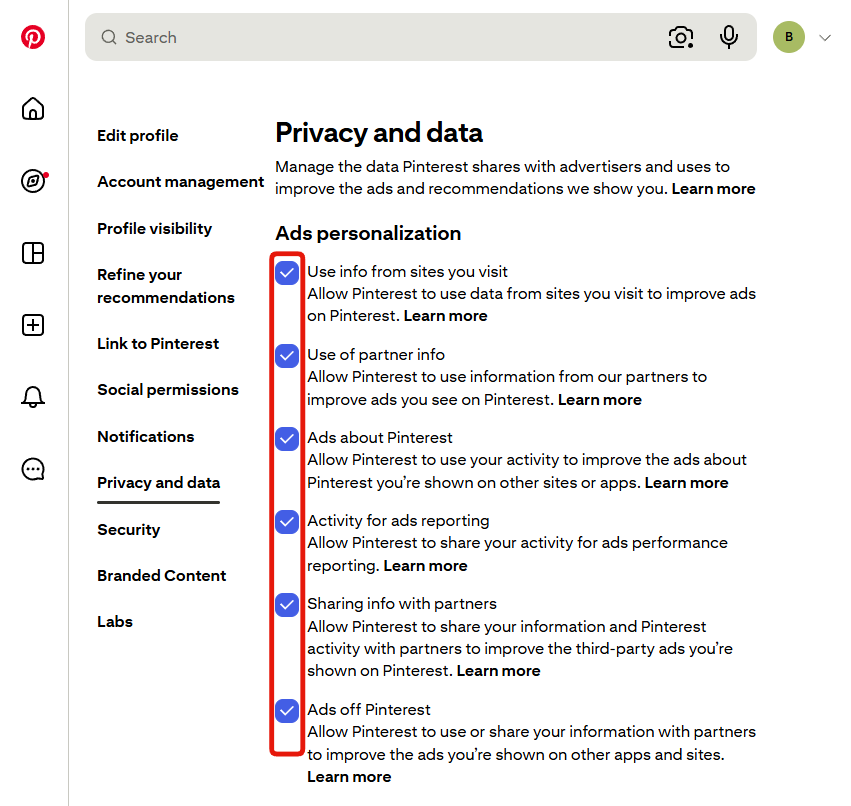
3. Open Privacy and data, then scroll past everything
Choose Privacy and data from the left-hand column. The screen opens on six advertising checkboxes, and the setting you came for is not among them, so keep scrolling to the foot of the page.
4. Clear the box under GenAI
Below the advertising block, under its own GenAI heading, is a single ticked box.
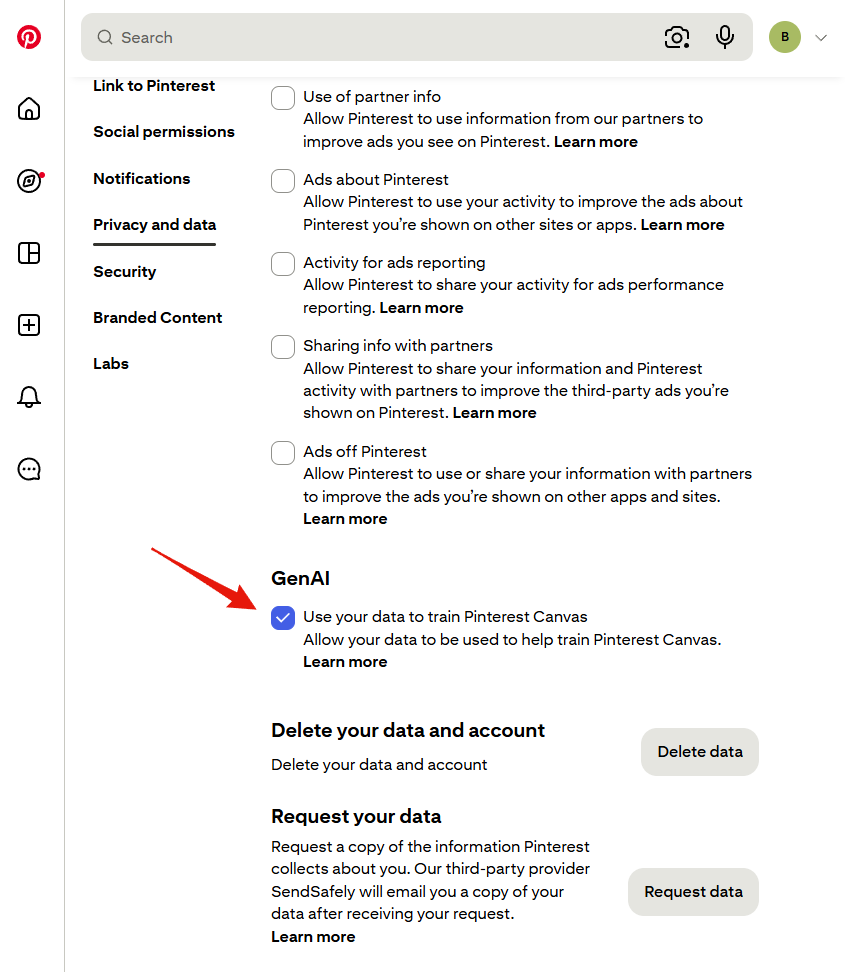
Use your data to train Pinterest Canvas
Clear it. Pinterest's description is that your data helps train Pinterest Canvas, and unticking is the whole of the opt-out. There is no button to press afterwards and no message confirming it, which takes some getting used to, but the page saves as you click.
Worth knowing
It only speaks to Canvas. The wording names one product rather than AI at Pinterest in general. Nothing on the page offers a broader control, so treat this as covering the thing it names and not more.
Clearing it does not undo past training. Turning the box off governs what happens from now on. No setting here withdraws work already used, and Pinterest does not offer one.
The advertising boxes above are a separate job. They govern who receives your data and which ads follow you around, and none of them touches model training. If you want those dealt with too, they are covered here: how to lock down your Pinterest privacy settings.