
How to lock down your privacy settings: Spotify
Verified working August 19, 2026. Not working? Let us know
Easy · 4 steps · about 2 to 4 minutes
Direct links to your Spotify privacy settings
Spotify splits these across two places. The account page below holds the advertising settings, and the rest live in the app's own Settings, which the walkthrough covers.
- Account privacy settingsBoth on by default - Tailored ads, and whether Spotify keeps processing your Facebook data. Two toggles, both switched on.
There is no AI opt-out on Spotify. Nothing in its settings offers a control over whether your listening trains a model, so if that is what you came for, there is nothing here to switch off. What Spotify does give you is a decent set of ordinary privacy settings, and they are worth doing.
They sit in two different places, which is the main reason people only ever find half of them. Advertising is on your account page on the web. Everything about what other people can see is in the app's own Settings. Neither one links to the other.
How to find your Spotify privacy settings manually
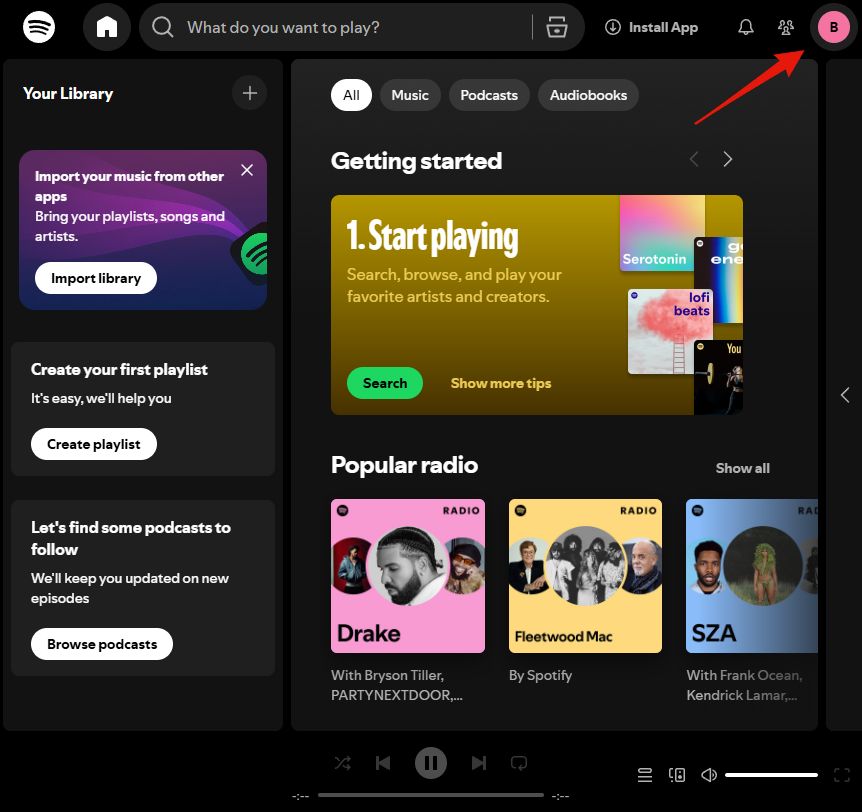
1. Open your profile menu
In the Spotify app or web player, click your profile icon in the top right corner.
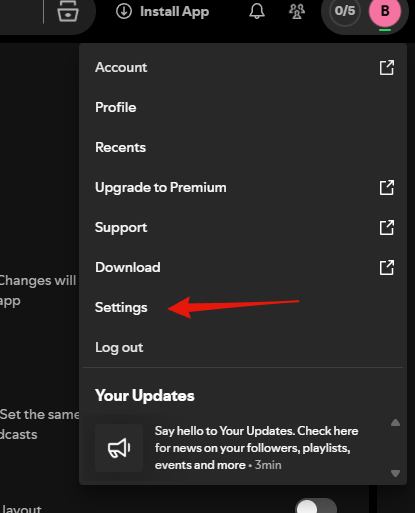
2. Choose Settings
The menu drops down with Account, Profile, Recents and so on. You want Settings, second from the bottom.
3. Stop broadcasting what you listen to
Scroll down the Settings page until you reach Listening activity and insights. Three toggles matter here, across that heading and the one below it.
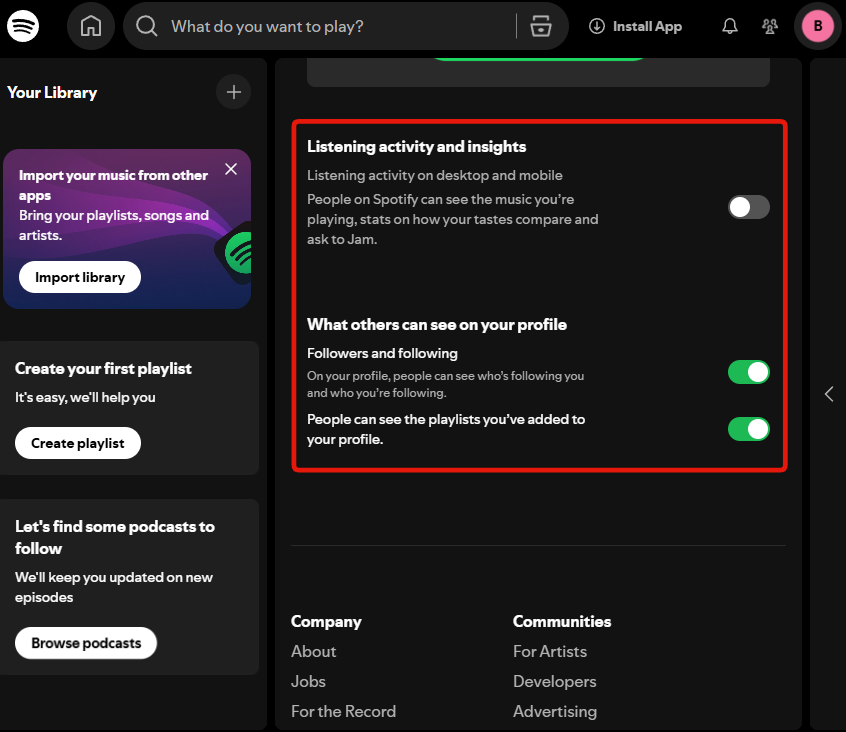
Listening activity on desktop and mobile
Spotify's own description is that people on Spotify can see the music you are playing, see stats comparing your taste to theirs, and ask to Jam with you. Turn it off if you would rather your listening not be a live feed other people can watch.
Followers and following
On by default. It publishes who follows you and who you follow on your profile. Turning it off does not stop anyone following you, it just stops the lists being public.
People can see the playlists you've added to your profile
On by default. Worth thinking about separately from the other two, because a playlist can say considerably more about someone than a follower count does. Note this covers playlists added to your profile rather than every playlist you own.
4. Turn off the advertising settings
The last two are not in the app at all. Open your account privacy settings on the web.
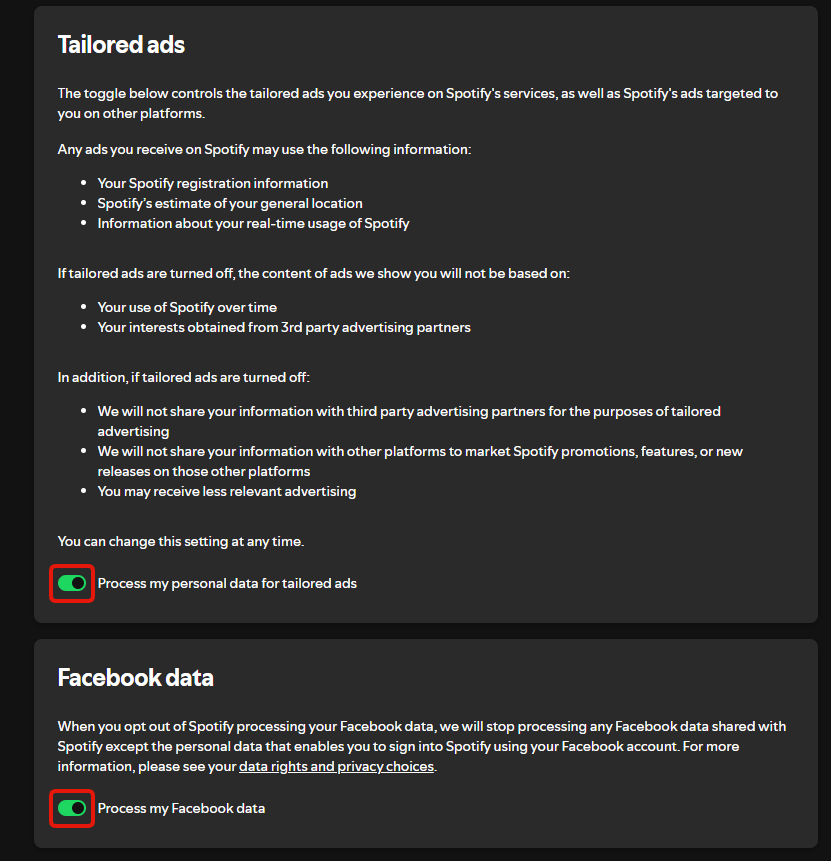
Process my personal data for tailored ads
On by default, and it covers more ground than the name suggests. Spotify says the toggle governs the ads you see on Spotify and the ads Spotify targets at you on other platforms.
Turn it off and, in Spotify's words, your ads stop being based on your use of Spotify over time or on interests bought from third-party advertising partners. Spotify also commits to stop sharing your information with third-party advertising partners for tailored advertising, and to stop sharing it with other platforms to market Spotify at you there.
What it does not do is stop advertising. Spotify says you will still get ads and warns they may be less relevant, and that any ad may still use your registration details, its estimate of your general location, and what you are doing on Spotify right now.
Process my Facebook data
Also on by default, and easy to miss because it sits under its own heading below the long block of ad text. If you ever connected Facebook to Spotify, this is what keeps that data in play. Turning it off stops Spotify processing Facebook data, except the part that lets you keep signing in with Facebook, which keeps working.
What none of this covers
Your listening history stays where it is. These settings change who can watch you listen and what your data is used for from here, and they do not remove anything Spotify has already collected.