
How to lock down your privacy settings: Amazon
Verified working August 19, 2026. Not working? Let us know
Medium · 5 steps · about 4 to 6 minutes
Direct links to your Amazon privacy settings
Sign in before you touch any of these. Amazon says on both ad pages that if you are not signed in it only remembers your choice for that one browser, and loses it when you clear cookies. These are the amazon.com pages, and other countries differ.
- Advertising preferencesInterest-based ads on by default - Interest-based ads, plus a separate button that deletes the advertising profile Amazon has already built on you.
- Your Ads Privacy Choices - A second and different ad opt-out, for cross-context behavioural ads, which is the one some US state laws give you a right to.
- Your Browsing HistoryBrowsing history on by default - Everything you have looked at, which Amazon uses to build recommendations. You can clear it, pause it, or switch it off.
The thing to understand before you start is that Amazon has two separate advertising opt-outs, on two different pages, and turning off one does not turn off the other. They are worded so similarly that it is easy to do one, think you are finished, and leave the other running. Amazon links each page to the other, which is the giveaway that they are genuinely different settings.
There is a third thing worth doing that is not an ad setting at all, which is your browsing history. That is what feeds your recommendations, and it has its own controls.
How to find your Amazon privacy settings manually
1. Sign in first
Sign in to Amazon before you change anything. Both ad pages say the same thing in their own words: if you are not signed in, your choice is remembered for that browser only, and it disappears when you clear your cookies. Signed in, it follows your account.
2. Turn off interest-based ads
Open Advertising preferences. This page has two things on it, and most people do the first and miss the second.
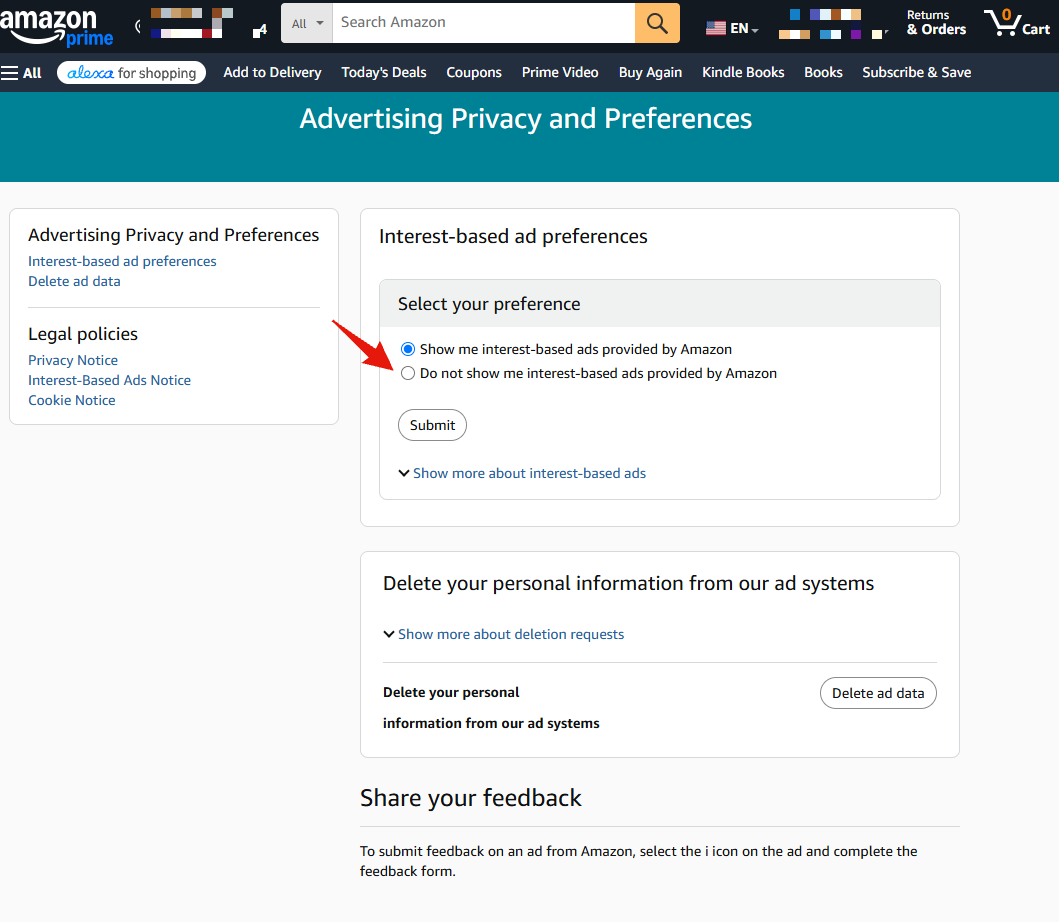
Interest-based ad preferences
Two options, and Show me interest-based ads provided by Amazon is the one already selected. Choose Do not show me interest-based ads provided by Amazon, then press Submit.
Amazon is specific about what that stops. It will no longer use your shopping activity to show you ads away from Amazon, will no longer show you ads on Amazon built from information the advertiser supplied, and will no longer target you across its affiliates' sites and apps.
It is equally specific about what it does not stop. You will still see ads, they just will not be picked from your interests. And you will still get personalised product recommendations, because those are a separate setting covered further down.
Delete your personal information from our ad systems
Underneath is a Delete ad data button, and this is the part worth reading carefully.
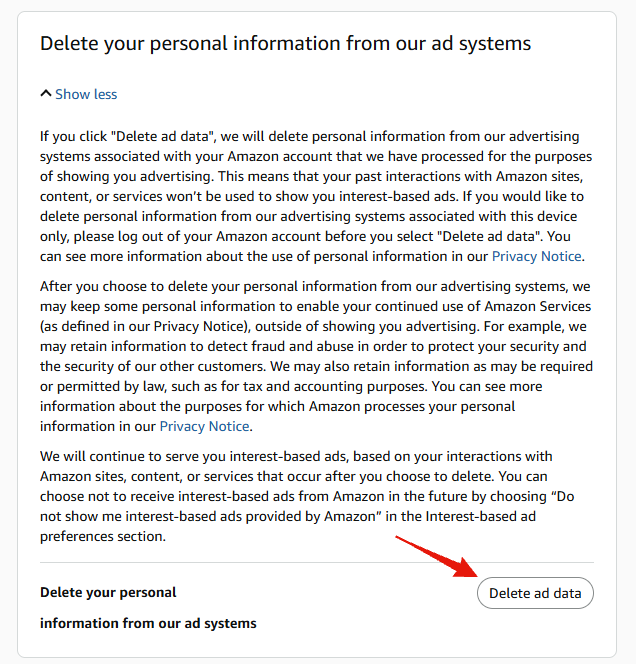
Pressing it deletes the advertising profile Amazon has already built from your past activity. But Amazon states plainly that it will carry on serving you interest-based ads based on what you do after you delete, and that stopping it is a separate choice.
So deleting on its own empties the file and Amazon starts a new one immediately. Set the preference above first, then delete. In that order you stop the collection and then clear what was already gathered.
Amazon also keeps some of it regardless, for fraud detection and for tax and accounting, which it says is either required or permitted by law.
3. Opt out of cross-context behavioural ads
Now open Your Ads Privacy Choices, which is a different page with a different setting and its own save button.
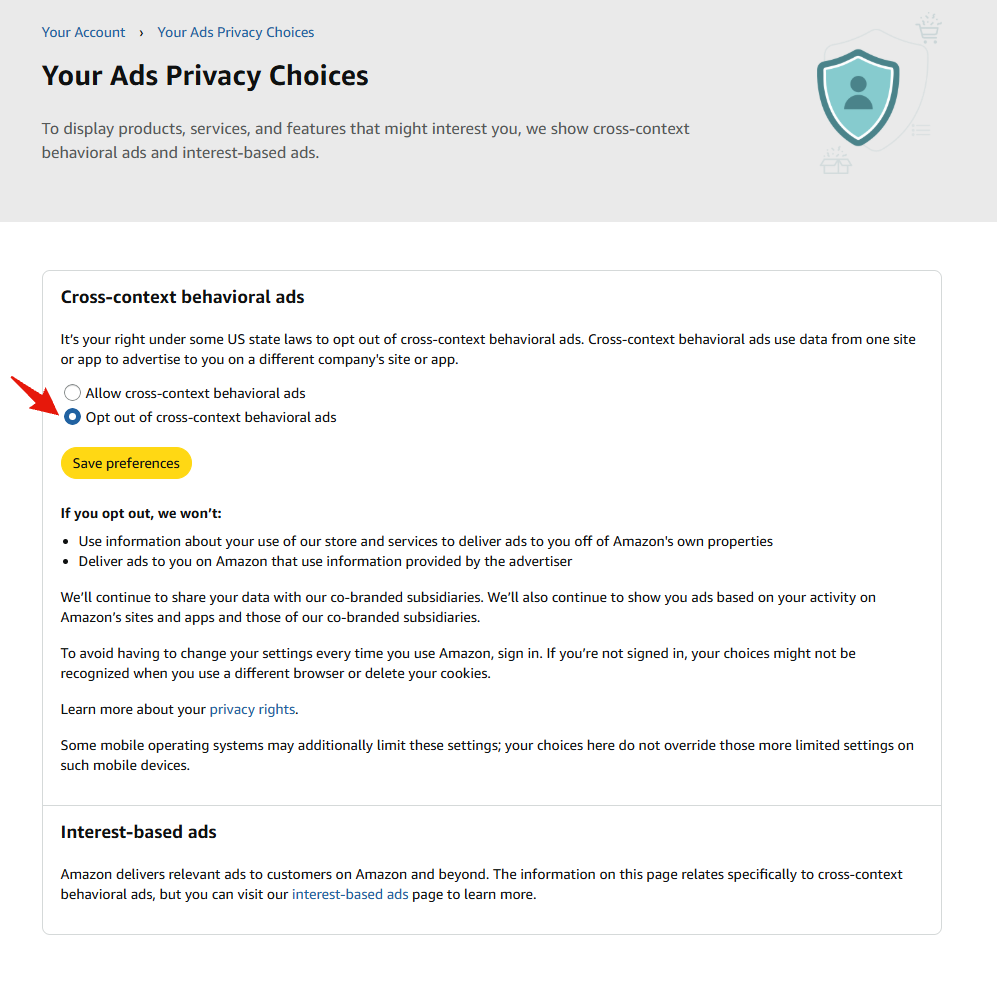
Cross-context behavioural ads
Amazon describes these as using data from one site or app to advertise to you on a different company's site or app, and says opting out is your right under some US state laws. Check which of the two options is selected, set it to Opt out of cross-context behavioral ads, and press Save preferences. The save button here is separate from the Submit button on the previous page, and neither one covers the other.
Read the small print underneath, because it limits what you just did. Amazon says it will continue to share your data with its co-branded subsidiaries, and will still show you ads based on your activity across Amazon's own sites and those subsidiaries. It also notes that some mobile operating systems apply their own limits, and that your choice here does not override those.
4. Deal with your browsing history
Open Your Browsing History. Everything you have looked at is listed, and Amazon says on the page that it uses this to personalise recommendations. The controls are behind the gear icon at the top right.
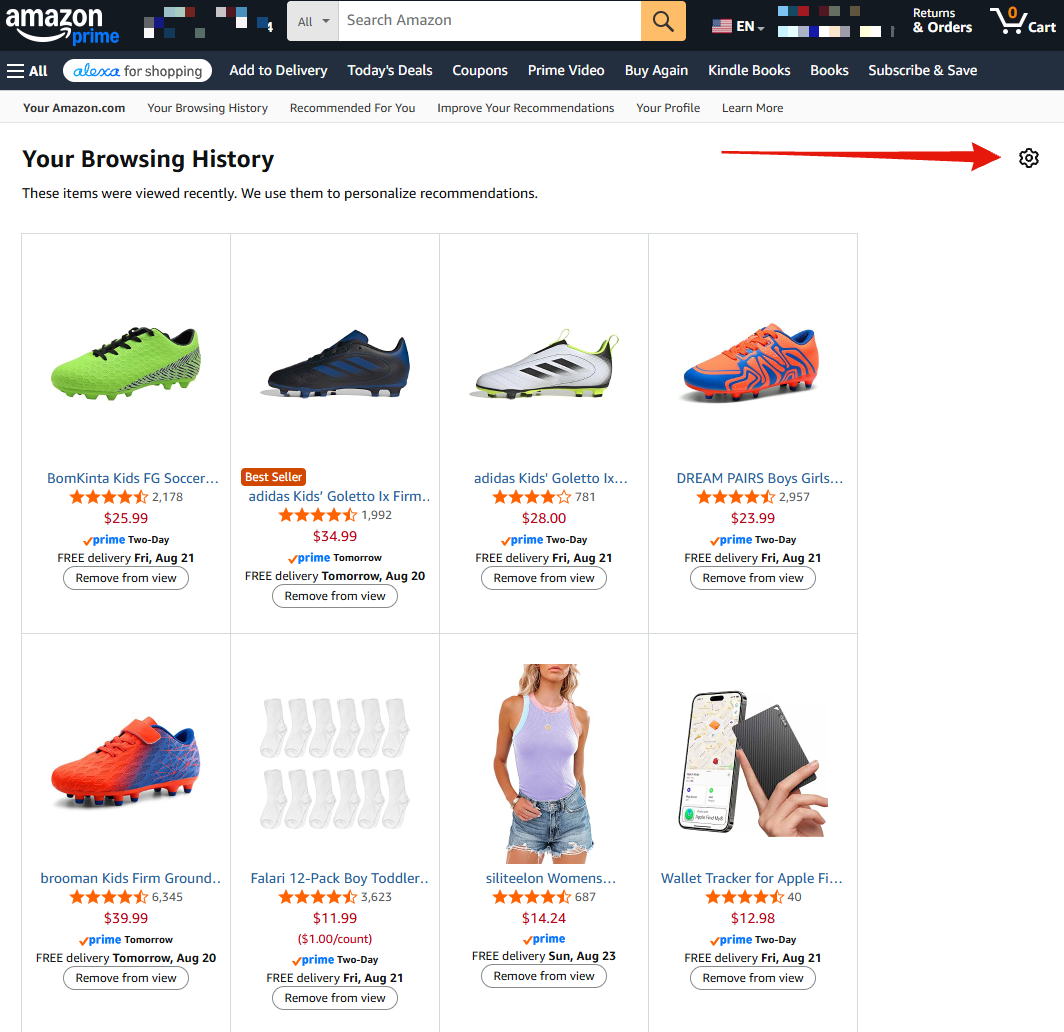
There are three separate things you can do here, and they are not the same.
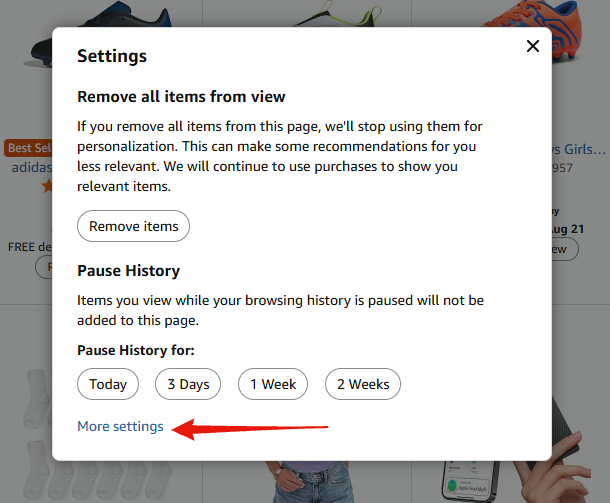
Remove all items from view
Clears the list, and Amazon stops using those items for personalisation. Note the caveat it gives you in the same breath: it will carry on using your purchases to pick what to show you. Clearing what you browsed does not clear what you bought.
Pause History
Stops new items being added for a fixed period, offered as Today, 3 Days, 1 Week or 2 Weeks. Useful if you are shopping for something you would rather not have shaping your recommendations for the next year, such as a gift or anything medical.
Turn off browsing history
For something permanent, click More settings at the bottom of that panel.
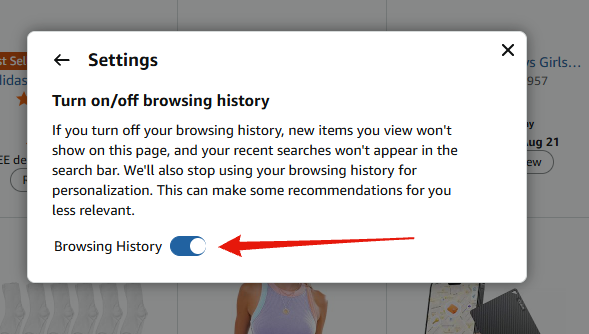
The Browsing History toggle is on. Switching it off stops new items being recorded at all and stops Amazon using your history for personalisation. It has one side effect worth knowing about: your recent searches stop appearing in the search bar, which some people find genuinely annoying to lose.
5. Cookies, which are handled elsewhere
If you have seen a guide pointing you at an Amazon cookie preferences page, that is the UK and European site, where the law requires one. There is no equivalent page on amazon.com. Amazon's own advertising page tells US shoppers to manage cookies in their browser's privacy settings instead, and points at its Cookie Notice for the detail.
Worth knowing because of how the ad settings are stored: Amazon uses a cookie to remember that you opted out. Clear your cookies and you can clear the opt-out along with them, which is the practical reason to be signed in when you set it.
What none of this covers
These settings are about Amazon's shopping business, meaning advertising and recommendations. They do nothing about Alexa. Voice recordings, and whether people at Amazon review them, are a separate set of controls in the Alexa app and its own privacy pages.
Your order history is also untouched. Nothing here removes what you have bought, and Amazon says outright that purchases keep feeding your recommendations even after you clear everything you browsed.