How to opt out of AI training: WordPress.com
Verified working August 19, 2026. Not working? Let us know
Easy · 3 steps · about 2 to 3 minutes
Direct links to your WordPress.com AI opt-out
This is for WordPress.com, the hosted product. If you run WordPress on your own server, from wordpress.org, this setting does not exist for you and there is nothing here to switch off.
- Your sitesOff, so the site is shared until you change it - The way in for everyone. Click the site you want, then open its Visibility card. The settings page itself carries your site's name in its address, so no single link reaches it for everyone, but the guide below shows the address to edit if you would rather go straight there.
Or go straight to the settings page. Copy the address below and replace [your-blog-name-here], square brackets and all, with your own site's name. You need to be signed in, and it only takes this shape for sites on a wordpress.com address. On a custom domain, use the link above instead.
https://my.wordpress.com/sites/[your-blog-name-here].wordpress.com/settings/site-visibility
Filled in, that becomes https://my.wordpress.com/sites/yourname.wordpress.com/settings/site-visibility
WordPress.com licenses the public content on its sites to what it calls its network of content and research partners, and it says on the settings screen itself that the network includes partners who train AI models. One checkbox takes your site out of it.
Before anything else, be clear which WordPress you have, because there are two and only one of them has this setting.
WordPress.com
The hosted product, where your site lives at an address like yourname.wordpress.com and
Automattic runs the servers. The guide below is for you. The site overview page says
"Hosted on WordPress.com" near the top if you want to check.
WordPress.org
The software you download and run on your own server. Automattic hosts nothing of yours, so
there is no licensing arrangement of theirs to opt out of, and this checkbox does not
appear anywhere in your dashboard. What crawlers can reach is yours to control directly,
through your own robots.txt.
How to find your WordPress.com AI opt-out manually
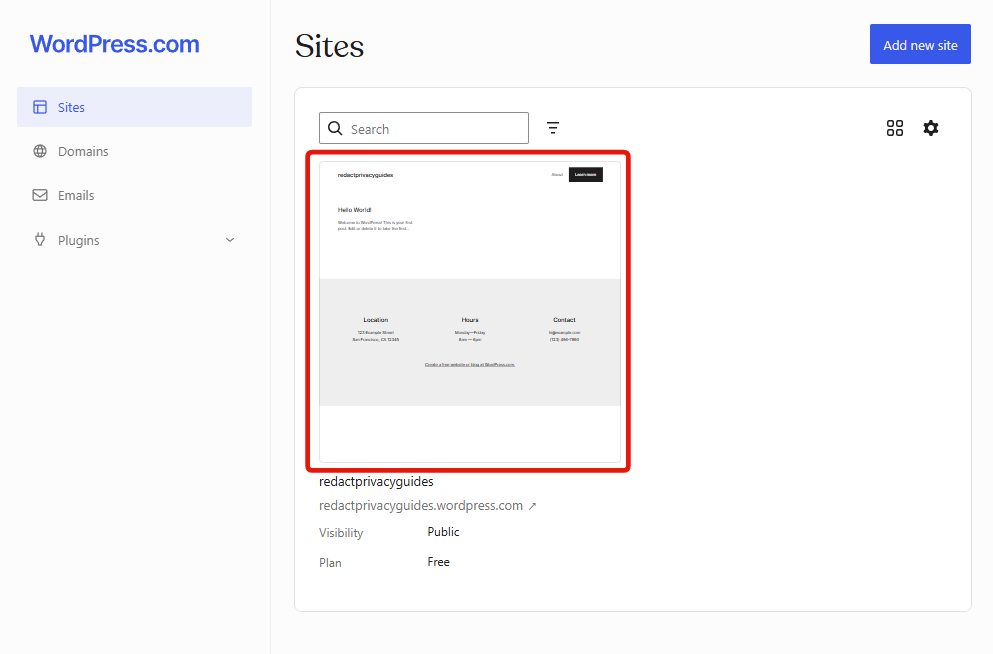
1. Sign in and pick your site
Sign in at WordPress.com and you land on your Sites page. Click the site you want to change. Every setting below applies to one site, so if you run more than one, you will be coming back here for each of them.
2. Open the Visibility card
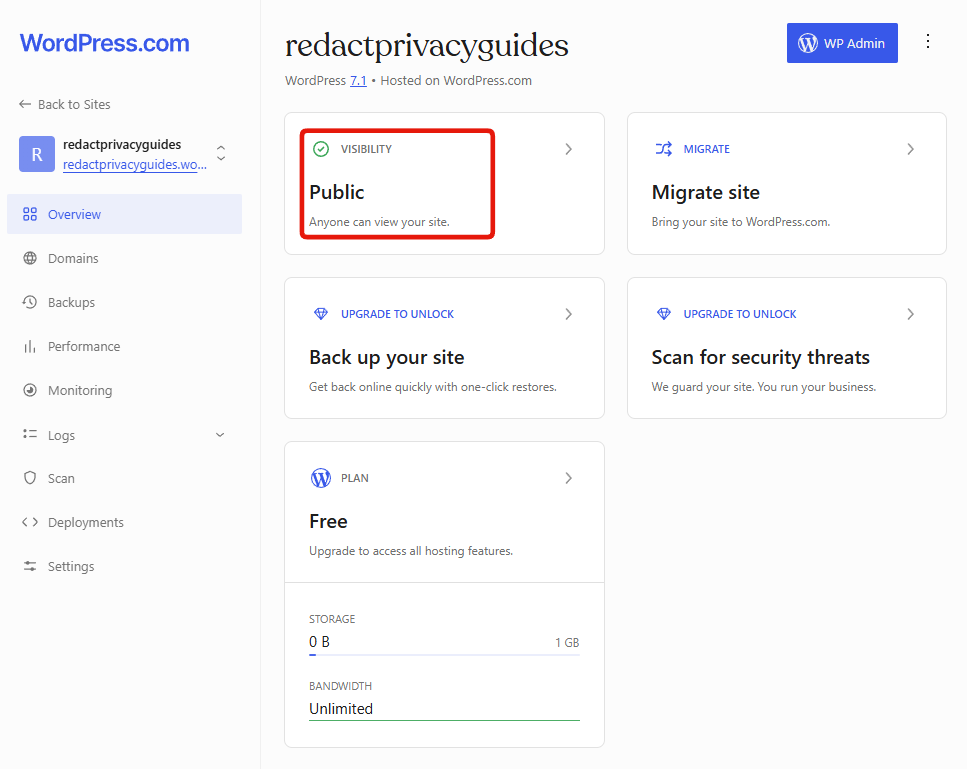
The site overview opens on a grid of cards. The one you want is Visibility, top left, with your site's current setting shown underneath it.
3. Tick Prevent third-party sharing, then save
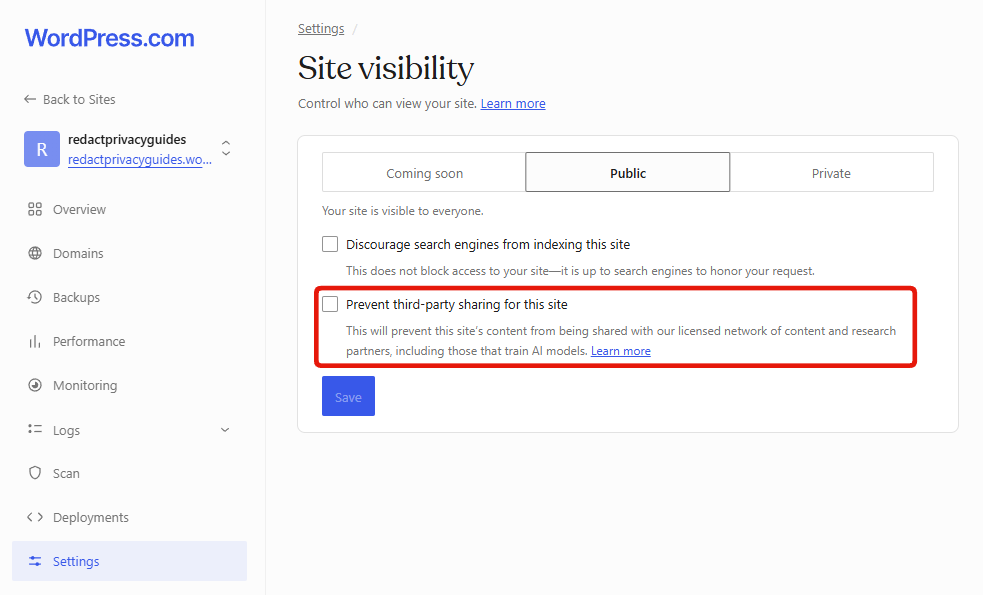
The Site visibility page opens with three options across the top, being Coming soon, Public and Private. Underneath the Public option are two checkboxes, and the one you want is the second.
Prevent third-party sharing for this site
Tick it, then click Save. Nothing applies until you save, and the button is easy to walk past because the page looks finished the moment the box is ticked.
WordPress describes the effect on screen as stopping your site's content being shared with
its licensed network of content and research partners, including those that train AI
models. Their support documentation adds a second effect that the screen does not mention,
which is that ticking the box also adds known AI crawlers to your site's robots.txt
disallow list, and they say plainly that it is up to those platforms whether they honour
it.
Discourage search engines from indexing this site
The checkbox directly above, and it is a different thing, so do not tick it by mistake. It asks search engines to keep your site out of their results, and WordPress says in the same breath that it does not block access and that honouring the request is up to each search engine. Leave it alone unless you actually want your site out of Google, which for most people defeats the point of having published it.
Worth knowing
Neither box is ticked by default. WordPress.com never asks the question when you create a site, so your content is in the licensing network from the day you publish, and it stays there until you tick this box yourself.
The site has to be Public for the checkbox to be there. Both boxes live under the Public option, alongside Coming soon and Private. A site that is private is not being licensed out either, so there is nothing to opt out of, but it does mean you cannot set this in advance and then make the site public later.
It applies to one site. The setting belongs to the site you clicked through from, so running several means doing this on each.
It does not reach backwards. Ticking the box governs what gets shared from now on. It is not a recall of anything already licensed out, and WordPress.com offers no such thing.