
How to opt out of AI training: Adobe
Verified working August 12, 2026. Not working? Let us know
Easy · 3 steps · about 1 to 3 minutes
Direct links to your Adobe AI opt-out
- Data and privacy settingsBoth on by default - This is where you turn off desktop app usage reporting and content analysis of the files you keep on Adobe's servers.
Both switches are on until you turn them off. Adobe analyses the content you keep on its servers, and reports how you use its desktop apps, unless you say otherwise. Two toggles, one page, about a minute.
How to find your Adobe AI opt-out manually
1. Open your privacy settings
Go to account.adobe.com/privacy and sign in. It lands on Data and privacy settings under Account and security.
2. Turn off Desktop app usage
The switch reads "Share information on how I use Adobe desktop apps." Adobe notes this one does not cover beta apps, which report separately.
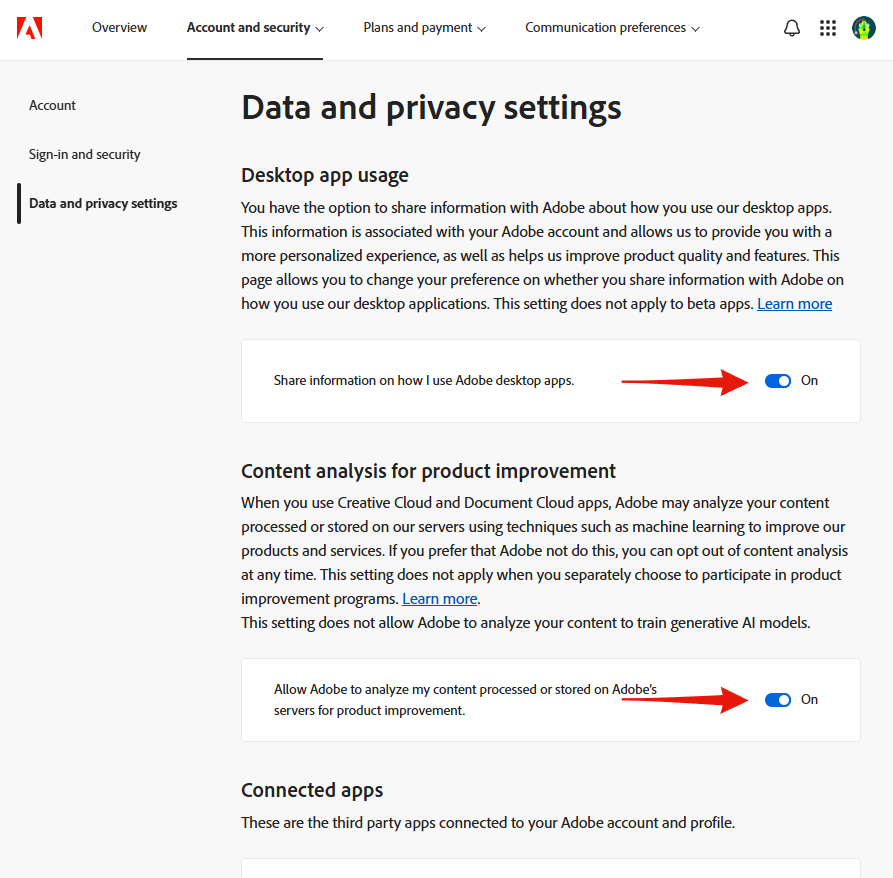
3. Turn off Content analysis for product improvement
The switch reads "Allow Adobe to analyze my content processed or stored on Adobe's servers for product improvement." It is directly below the first one, on the same screen.
Both save as you flip them. Nothing to submit.
Be clear about what this does and does not cover
This is the part Adobe's own page is careful about, and it is worth repeating rather than letting the heading imply more than it should. Under Content analysis, Adobe states:
This setting does not allow Adobe to analyze your content to train generative AI models.
In other words, the toggle governs machine-learning analysis of your files for "product improvement". Adobe says outright that its generative models are not trained on your content through it. Turning it off is still worth doing, because it stops Adobe running analysis over work you have stored with them. Just do not read it as the switch that keeps your work out of Firefly, because Adobe does not claim it is one.
There is also no toggle anywhere on this page that says "generative AI training". If your concern is specifically that Adobe is training image models on your files, this page does not offer a control for it either way.
If you are on an organisation or enterprise plan
Both of these are personal-account settings. Where your Adobe account belongs to a company or school, an administrator may have set content analysis for everyone and locked it, in which case the switch will not be yours to change.
The reliable lever
These settings govern what Adobe does with content it already holds. What you control outright is how much is sitting on their servers in the first place. Files kept locally rather than synced to Creative Cloud are not content Adobe can analyse.